Since I've ordered an iMac for myself online and it's stated to arrive by Tuesday, let's do a rundown of the most important apps that I'll be installing on my new computer.
The most important apps
1) Chrome, and Firefox.
This one is a no-brainer. It's so basic, such an integral part of my life that I almost forgot that you have to install it yourself. Of course it's the first thing I'll download and install.
Sure, there's Safari... But with all the numerous extensions on the Chrome app store, and the ability to sync bookmarks and extensions across platforms... Chrome is my go to browser now, even replacing Firefox that I was enamoured with previously. I still use Firefox occasionally though, because I have multiple accounts of things like LJ, tumblr, etc, so instead of having to log in and out, I just log in to a different account on a different browser.
After those two, I'll probably pick up Opera as well, though I rarely use it.
2) Microsoft office suite.
Again, there's Apple's numbers, pages, and keynote... But microsoft office still rules my day. I use that at work. All my documents are in the office suite format... Yeah. It's a must. Only caveat is that I'll need to either get a usb cd/dvd drive fast, or I see if I can hook it up to the laptop and read the cd remotely because I have an old version of MSoffice in a CD, and the new iMacs don't have a CD-rom drive.
3) Alfred.
Alfred 3 just got released, rejoice! I've blogged about that app before, a long time ago... And yes, I'm still using that thing now. It's just so convenient! The latest version even brings text expansion ability into the table, so you might not even have to buy a separate text expander/typinator app anymore!
Ok. Let's backtrack a little to what Alfred is. It's well... A lot of things.
At it's most basic, it's an app launcher. A search box. It can find your files. It's a calculator. It's like a soaped up version of spotlight. But what makes it really shine, it when you pay for the powerpack. Or become a 'mega supporter'. I became a mega supporter after paying once for the powerpack features... And I must say I regret not becoming a mega supporter earlier. By becoming a mega supporter, you get all the updates free, for life. Even through major revisions of the app. As a powerpack supporter, you only get updates free through one major revision. And it only costs twice as much to be a mega supporter. This is the third major revision that Alfred has been through since I started using it, so basically I've gotten my mega supporter money back.
So what's in the powerpack you ask? Well. A lot of stuff.
Besides the snippet/text expansion mentioned earlier, you things like a music player, workflows, clipboard, hotkeys, shell integration... And a lot more.
My single most used feature would be the clipboard manager. I cannot live without clipboard managers. I had to spend my time searching the web for a decent clipboard manager to use on windows when I started using windows again at work.
Hotkeys. You can set up a ton of hotkeys on Alfred. And I have hotkeys for opening Chrome, Firefox, Word... For playing and pausing music... For skipping tracks... Yup. I love hotkeys.
The iTunes controller was used often too, when I my own lappy was still usable. These days I'm using my dad's lappy and my songs aren't here so... No more music listening on the computer for me.
The workflows. Ah. Workflows. You can make a note in Evernote from the Alfred search box, make a tweet, convert currency or units... Or you can launch a shell script, control your favourite app... The possibilities are endless, and the interface is presented in an easy to use way, so that even programming noobs like myself can use with ease. Or, better yet, you can simply download one of the many workflows that other Alfred users have made.
Of course, you can use change the theme and appearance just to way you like it. Pretty cool app, and definitely one of the first few I'll be installing.
4) Typinator
It's a text corrector and snippet expander... And has other cool functionalities (that I hardly use though) like being able to run shell scripts. I mostly use it for the auto correct feature. Snippet expander is really cool too, if I'm writing stuff a lot. Sure, Alfred just got the snippet expansion capabilities as well... But nope, Alfred can't correct regular typos for you like 'teh' to 'the', not unless you program it to I guess. Typinator has a humongous list of common misspellings also built in for you. Plus, I got the app a real long time ago. You can pick Text Expander over Typinator. Personally I think they are both about the same. I don't use the text expansion ability as much now since I do less work at home these days. But when I was writing my undergrad thesis it was extremely useful. I basically just keyed in the full name of the protein I was working with and never had to type that thing again. Ever. Setting up snippets for emails is very useful too, and I certainly spent a lot of time search for a windows equivalent to use at work (turns out there's PhraseExpress on windows, and gasp, it's free). So I type 're1' and my email ending pops up. Or 'dz1' for a email opening... Or 'quote1' for the whole shebang on my name, title, and office address when asking vendors where to send the quote to. Very neat, and saves me a lot of time typing the same thing, or even looking up things like my office address. Like. Who memorizes those stuff right? Well, at least, not me. Anything that I find myself typing more than once, I'd make a snippet for it. Sure, you can copy and paste, but then you have the save the text somewhere. And open that up to copy. So unless you're using the text right away, text expanders are the way to go.
5) Dropbox.
Hidden away in the finder... I almost forgot this gem. It maybe now shout out to you like Chrome does. but it's there in the background working all the same. I use dropbox to backup my iPhone photos, and to sync files between computers... Say my ebook collection. It's definitely an app that I need to install whenever I switch to a new computing device.
6) Evernote
It's the favourite writing app now. I write my fics there (well, my fics are short, so it works great), I save important snippets of information there. I save important emails there (thanks to outlook integration!). It's my to go place for information storage. Sure there's Apple notes that I also use on the iPhone... But for anything that I might be working on in the office? I'll put it on Evernote for sure. I've got my entire fanfic collection saved in there too. With the ability to make notebooks and sub notebooks (essentially folders and sub folders), you can organise you notes really well, and even share the notes with others. I personally don't see the need to pay for the service though, since I tend to only use it when I have Internet and thus the greatest premium feature - offline notebooks - doesn't appeal to me. (You need space on your device for that too, and my phone doesn't have enough space...)
7) Dayone
My favourite journalling app, that I've been using for over 3 years now. Also recently imported all my LJ entries in there. It's Mac and iOS only though, but still good enough for me. It also recently got IFTTT functionality, so I've been using IFTTT to put my fb status updates and instagram photos into my journal as well.
8) Better touch tool
The hotkey master for your mouse, trackpad, and keyboard. I rig up windows positioning with this app. I put this in number 7... It's not one of the things that I'll notice is missing right away... Till I need to reposition a window and hit Alt-V and hey! Why is nothing happening??? Yup. Then I get pissed and start hunting for better touch tool. Or a similar app on Windows. I like hotkeys, and hotkeys to help me place word documents side by side, just in a particular quadrant of the screen etc... It's essential for me. Esp in the office when I have a big screen... Or when my iMac arrives. There's so much real estate on the screen and you need to be able to use it effectively, and efficiently.
I'm not quite sure if you can do the same with Alfred workflows, but I got better touch tools set up before Alfred workflows were even called workflows, so I didn't bother trying. Like Alfred, you can save a preference file and transfer it between computers, and that's exactly what I did when switching to colonise my dad's lappy.
9) Bartender
Oh this one. Again, another app that you don't really notice till it's gone.
Well, for me that is.
Reason? Because I install on much stuff with menu bar items. And on the 13 inch macbook pro, there's not much real estate space. The icons are often covered by the menu bar items. And so I need something like bartender to help me manage the menu bar items... Hiding those that aren't needed to be seen, but that I need the app running in the background.
I used to have more of those apps in my menu bar, but not on my dad's lappy. I didn't install as many apps here.
10) Razer Synapse
Ok. This is a very recent addition. But since I am using the razer widow and mamba... And I spent my time configuring the lighting... Yup, you bet I'll install this. I've changed the layout of my keys too, so alt is now command and vice versa. So I'd alt-c to copy, which is the same key positioning as cmd-c on a mac keyboard layout. Unfortunately for me... This leads to some confusion when I'm at work... Since the keyboard layout is the same windows type as the widow... I end up pressing alt-c to copy a lot. Till I realize that it doesn't work and then I'd realize that 'Oh! I'm not on the mac!'. Didn't use to be so much of a problem because the mac and windows keyboard layouts are slightly different. Oh wells.
So that's the list of most important apps that I would install right away.
Then next comes the ones that are important when you need them. But aren't necessarily going to be needed right away. Like, tier 2 apps so to speak.
Important, but not that urgent
1) VLC player.
My go to player for video files. It plays a HUGE variety of video formats, has de-interlacing functionality, lets you skip videos back 3 seconds, and most importantly, allows you to assign hotkeys for many of it's functions. As someone who did video translations, ultra short backward skips are really important to me. Often times I'll just be stuck at a particular phrase, trying to figure out exactly what was said. And I don't need to waste time going back 30 seconds and listening to everything else all over again. I might end up forgetting what I was trying to listen out for even. So yup, VLC is the player for me. Not to mention that it pretty much handles everything that you throw at it. And you can re-sync the audio track or subtitles timing too. Love it.
Of course... Being the Arashi fan that I am, with a ton of different videos from various sources, I also have mxplayer and quicktime to supplement VLC, for the rare case that something might not work on VLC... Or so that I can check if the video glitch is due to my computer/vlc/the video.
2) MarsEdit.
My favourite blogging app on the mac... Unfortunately though... Support of it seems to have waned and this thing unfortunately doesn't play nice with LJ. I have to go back to LJ and add in the tags and things like LJ-cut myself. Can't blame them though, considering how dead LJ was, and still is.
Still, the ability to paste photos/screenshots into the editor, and have it automatically upload the photos for you later one is really a life saver when it comes to making show reviews. Since each of my show review is filled with like, hundreds of photos... The auto uploading feature is really, really a life saver. To be honest, I don't use it these days since I don't do TV show reviews... But once I get back to doing them? It's definitely MarsEdit for me. It plays nice with blogger and wordpress so that's great.
3) LINE
My favourite group messaging app. Well, I use whatsapp and fb messenger too, but those two are browser based when on the computer. Comparing the three messenging apps on the computer, I absolutely hate whatsapp. It's the weakest of them all. Because it's mobile based. They don't have their own servers that keep your data. Nope. Instead, the web browser app uses wifi to connect to your phone, and syncs messages from your phone to the browser. This means that the connection is lost pretty often. Like when you phone hasn't been used for a while, the connection tends to go off. On the other hand, both LINE and fb messenger lets you connect directly to their servers to download the messages. No phone required (save for the initial set up for LINE).
LINE of course, has the added advantage of having a desktop app (both for mac and windows). Ok, on the other hand you can't access LINE from the browser... But I prefer having a separate chat app, rather than open a facebook chat just so that I can chat. I know, FB debut a messaging only website sometime back... But the page looks bad. I still keep a tab open in fb just to chat even now.
Hmm stickers. LINE has much cuter stickers than FB IMO, and the way of associating words that you type in chat with relevant stickers? That's something that FB could really really learn from. I hardly even use stickers on FB because it's too troublesome to search though my hoards of sticker sets to find something relevant to use. Sure, they recently included a search function... But really? I won't purposely look for a sticker. I just type. So that's one functionality FB could definitely use. As for Whatsapp? Geez. That lousy thing doesn't even have any stickers! Sheesh! Sure there's emojis, but what are emojis! These days, we want STICKERS!
4) Megasync
For downloading files from mega.co.nz. Well, this is only if you use mega. Which I do, a lot. When I'm getting my Arashi video files. So this is a must for me. Similar to Megasync would be apps like baidu pan, though they only have that for windows.
5) Keka, unarchiver, RAR extractor free, other file unzipping apps.
The unarchiver is supposed to be the best, and free unzipping app out there, but often times it refuses to unzip the file for me. Like, an ad asking you to select the file types it can handle pops up. Which you then dismiss... And nothing happens to the file. And then you rinse and repeat till the app finally, by some stroke of luck, decides to unzip the file for you. As a result, I got Keka. Yeah. I paid for that thing... Because it gives me an easy way to zip up my files and put a password for them without having to open up terminal. Because I'm a forgetful person when it comes to terminal commands and I hate having to google how to do it each time. And for some unknown reason, I can't find a decent free app on the mac that lets me zip files with password. Sheesh!
As for why I need that many unzipping apps... It's because I download Arashi files from a ton of sources and somehow some files that can't be unzipped with one program unzips fine in another... *shrugs*
6) YoruFukurou
Literally meaning 'night owl' in Japanese, YoruFukurou is a very elegant little twitter client for all your tweeting needs. It supports multi account, shows your lists, allows you to make searches... And most importantly is very light weight. By that, I mean that it takes up little real estate space. A lot of people use tweet deck, and I've tried it but dislike it. YoruFukurou is more minimalist in my opinion, and I recommend giving it a try.
6) Growl
Ah... The first of the many apps that stay hidden for the most part. Growl is a notification app that will enable apps to well, notify you of changes. Be it a new tweet mention or a new song playing... You can set the notification style, timing, which notifications to receive and so on.
7) NTFS for mac, Fuse for OS X
I can't remember exactly which app is needed anymore. I mean... I blogged about this a long time ago, regarding how to get you mac to read FAT (aka windows format) drives. I subsequently decided to shell out the buck and pay for it. It was on offer on one of the numerous mac app site that I subscribe to, and they bundled if with a program that lets windows computer read mac formatted drives too. If you are wondering why the hell your mac can't read your disk drive... Well, here's why. It's in the wrong format. You either have to reformat it, or get an app like NTFS and Fuse to let your mac read the drive. When I bought my seagate HD last time, they gave a driver that lets you read windows formatted seagate drives on the mac. Says it only works for seagate hard disks, but since the rest of my hard disks were mac formatted, I couldn't try. Still I found it really slow and problematic though... But my laptop was already really aged by then so I don't know who to blame. I subsequently transferred all my files out of the HD and reformatted it to mac format. I've not used it ever since either, since it's a non-portable drive that requires external power. Nope, no more HD drives that needs external power for me. Too troublesome!
Other Apps that I will install
Ok, here we are at the tier 3 apps. Apps that provide great functionality... But it's in some area that I hardly use.
1) Photoshop, and the whole Adobe creative suite.
Ok, I got this sometime ago on a CD... So I need that darn dvd drive again. I don't use it *that* often, but I do use photoshop every now and then. Would definitely need to pick up on illustrator as well... Though I have no idea when that's going to happen.
2) Calibre.
All, the ebook management app for my kindle. Well, that's not the only thing calibre can do of course. You can use it to convert PDFs and epubs to mobi format (or vice versa) too. If you have a lot of ebooks, calibre provides a nice and easy way to manage your files. You can sort the books by titles, author etc. And if you have a kindle? Calibre lets you mail the books directly to your kindle. No wires needed.
3) Mirovideo converter
I use this mainly to rip CMs into mp3s. For my mixlr radio broadcast. It's really lightweight app that does the job quick. No fanciful menus and stuff. Which you don't really need anyway. It can also help you to 'downsize' your video to a lower quality so that you can save space on your mobile. But with beautiful retina displays on the mobile these days... I'm not sure if anyone would do that anymore...
4) Mixlr
Well, for me to do random mixlr broadcasts of course. Nothing else there is to this.
5) Dropzone 3
A cute little menu bar app that lets you drag stuff to it. You can set the short cuts you want, an icon to upload the image your drag there to imgur for example. Or to open up whatever file in whatever program... Convenient, though hardly part of my work flow.
6) Popclip
A little pop up that appears when you highlight words, that lets you look the word up in a dictionary and so on. Good to have but not essential to my work flow.
7) Handbrake.
If you work with videos, then you'd have heard of this. It's a great app for ripping dvds, converting videos, and burning video subtitles. I hardly do any of that though so... :P Usually my teammate handles that part for me.
8) Aegisubs
A fantastic, free subtitling program. It lets you time the subs, set colors, fonts... You can even do karaoke with that thing. Again, I let J handle all that for me so I'm blissfully unaware of the inner workings on this program.
9) Artrage 4
We got this app when we got the wacom tablet. This is better than photoshop for drawing, especially if you're drawing anything more than simple black and white cartoons. In fact, this app lets you paint. Oil painting style. You can digitally mix then paint and stuff too. I don't do well in art in terms of drawing... But I guess I can always install this for fun...
10) Ink
I got this app before we got the wacom tablet. It lets you turn your mac trackpad into a drawing pad. Great for people who want to try doing some digital art but don't have a tablet. Sure the trackpad isn't very big... But trust me, this is way, way better than trying to draw with a mouse. Also, your computer screen is larger, and the app lets you zoom into a particular area of the screen to draw, so I do think you could get a better experience with Ink than with your phone.
Of course, nothing beats the iPad Pro and Apple pencil for digital drawing IMO. But then I've not had a chance to try the Apple pencil yet. Darn you stores! Why don't you let us try the pencil! :(
11) Teleport
This is great if you have more than 1 mac. It essentially lets you control multiple computers with a single mouse and keyboard. Pretty cool, but I don't see myself using multiple computers at the same time much since well... My lappy is basically dying.
Ok. I think that about covers most of the major apps that I'll be installing.... On the other hand... There are some widgets that I must have. Even though Apple has completely the dashboard widgets and there's even speculation that the dashboard will be gone before long... I really do like my dashboard and the widgets the way they are. Especially love the sticky notes feature. I clip random bits of information that I'll only need on my computer there. It's right there at your fingertips. Or with the moving of the mouse to the bottom left hand corner in my case. I like to have my dashboard as a translucent overlay. Not as a separate space. So that I can refer to my digital sticky notes and check the widgets I have...
Widgets
1) iStat Pro
They don't even make this anymore. You have to get the file off someone online... I know I had it uploaded somewhere... They now make it a menubar app and charge you for it. Well, I have no problem with paying a few bucks on a good app that I know I'll be using for ages... But alas, I have more than enough stuff crowding my menu bar as it is! I like it on my dashboard, thank you.
2) Screenshot plus
For al the random times when I want to take a screenshot. Sure, there are shortcut keys for that. But can you really remember all the shortcut keys? I think it's cmd+crtl+shift+4 to drag an area of the screen for a screenshot and copy the thing to your clipboard. I think. It's been a long time since I did reviews. But yeah... How about saving it to your desktop instead? What key is it? You can google. Or just get a widget to handle it for you.
3) Organized
A soaped up version of the calendar! You have notes, to-do list, and you can set multiple time zone clocks too.
4) TunesTEXT
For displaying the lyrics of the song that's currently playing in iTunes. Lyrics are pretty hidden in iTunes... TunesTEXT enables you to quickly refer to the lyrics, and get on with work.
5) Currency Converter
Ok, I admit I used this a lot more often in the past... These days google is really smart and you can just do a quick google search instead. Currency converter lets you compare multiple currencies at once though, an advantage if you are trying to convert to multiple currencies every time.
6) PEMDAS
Hands down the best widget calculator available. It's a scientific calculator, right on the widget, for all your scientific calculation needs.
7) LunarPhase
Ok, this is just for fun. But it's really interesting to see what phase the moon is right now. When is a full moon coming? Is it a crescent moon today? Incidentally, the app says it's a full moon today. Hmm, I should look out the window eh?
8) Other widgets...
There's loads of other purpose built widgets out there... Even though they're most likely very very old. If you keep playing scrabble you might want to check and install a unscrambler widget. Or maybe a widget to countdown to your big day. Or maybe something to play a plain old game of snake, or a digital lava lamp to waste your time away. Or you could simply check the weather with the stock weather widget.
It seems unlikely at this stage that Apple will revamp the dashboard... But I do hope they keep it. For one, I'd really, really miss it if it's gone.
Showing posts with label Mac. Show all posts
Showing posts with label Mac. Show all posts
Sunday, May 22, 2016


Sunday, April 03, 2016
iOS 9.3
Well, the biggest feature in the iOS 9.3 release is the introduction of the night shift mode. And for someone nocturnal like me, the night shift mode is a godsend.
I don't know if the thing about blue light is really affecting my sleep... But I do know that it was making my eyes hurt because the screen was too bright. Even the dimmest setting is too bright and painful to read on when the room is completely dark. I've even tried tweaking in the accessibility settings to have a mask over to make the screen dimmer, but it was quite a troublesome process and I didn't do it much. So in the end, my eyes hurt each time I tried to read/play on the phone before bedtime. And unlike many people who can't sleep if they use their phones before bed, it's often the other way round for me. I get sleepy playing stuff on the phone... (And I've fallen asleep and dropped the phone without first charging it, and woke up to a nearly daed phone - games were still running - several times).
So what I've found about the night shift mode is that cutting off the blue light makes the screen dimmer, less glaring, and perfect for using at night. Nonetheless.... Thanks to my varied sleeping habits... The current way of implementing night shift mode is less than desirable for me. I first set it to start at 10 pm. Then I realised 10 pm was way too early in most cases. Because I'd set the red shift to the most extreme option, the screen looks pretty... Red, and therefore I'd like it off if I'm not in bed yet. I'm most probably using the laptop, with my room lights all on anyway. And if I'm doing work, I actually don't want to fall asleep. Oh worst still if the reason I'm reaching for my phone is so that I can snap a few pictures. I *need* the night shift mode off so that I can properly judge if the lighting and color are right.
Rather than a timer... A quick on off switch say in the control center would work much better.
Or... I could ask siri to do it for me.
I just tried. It worked great. Only that I'm still shy when it comes to talking to siri.
Thus far the most that I've asked her to do was to 'wake me up at 8 am'. Or whatever time of my choosing.
More than 3 months in with a 'Hey siri' phone and that's about all I ask for siri...
Still, it's an improvement from the previous phones without an active hey siri feature. I don't use siri at all.
But well, I've always been the shy type eh?
Not much else for iOS 9.3... Notes can now be password protected. I might activate that... Though it's not that necessary since my phone itself is already password protected. And my phone tends to stay in my hands. Still, since I can use TouchID, there's no harm activating it though...
(Well, unless I'm in the lab. Then TouchID won't recognise my gloves. And it won't work properly when my fingertips are moist from sweating my gloves either. Unless I stay in the office... I end up having to type my password most of the time at work.)
The Apple Health app supposedly got an upgrade, but I've never used that app much so I don't see the difference... I've always used other apps like Argus and UP to keep track of my step count anyway... So I only go to the Health app once in a blue moon if I want to look at how many flight of stairs I've climbed.
The rest of the updates - CarPlay, and News and Education - doesn't affect me. Our new car doesn't support CarPlay. News is still only available in the US, and Education? I'm not in school anymore. And I doubt educators in Singapore will have it implemented any soon.
So that's about it for iOS 9.3.
What else was announced in that Keynote?
iPhone SE and the smaller iPad Pro. The iPhone SE is great news for several of my friends with small hands and loving the iPhone 5s form factor. Sure, TouchID is still the 1st gen version, and there's no Force Touch. But the first gen TouchID work pretty darn well already... And ForceTouch? I tried to use to often initially, but now I can't even remember the last time I've used it anymore...
For those who aren't gadget loving geeks like myself, and prefers a smaller phone, I think the iPhone SE is a great choice.
iPad Pro. Once again, it's the Apple Pencil that I'm interested in. And it's really irritating because none of the stores in SG lets buyers test out the Apple Pencil! Sure the iPad Pros are on display... But I have an iPhone and I've seen an iPad. But I've not seen the Apple Pencil. Nor the keyboard.
The iPad Pro sounds like a fantastic tool to get... But adding on the cost of the Pencil, and maybe even the keyboard... And you have a really, really expensive iPad. Sure it's still a great deal for creatives. But for a pseudo creative like myself? Nah dah. I'm pretty hopeless when holding writing instruments. Though I definitely see better results with a physical pen and paper as compared to a walcom pen and tablet. Which is why I'm interested in the iPad Pro and Apple Pencil in the first place.
But still. The iOS is not enough for my complete geeky needs. Sure it'll be quite a step up in terms of productivity with the keyboard - I can do all my light blogging on it - but not if I'm writing something that requires some research. Like. 'Some' research by having about 20 tabs open, and trying to search up the Japanese dictionary and English thesaurus. I know that you can have apps open side by side with split screen but... Well, it's probably ok if you're only using two apps at once. But more than that? I think there'll be trouble.
Say, if I'm trying to do a show review... Taking tons of video screenshots, while trying to translate, and blog at the same time... On my mac that'll be VLC (video player), MarsEdit (blogging tool, also uploads all my screenshots), Chrome (for all my Japanese dictionary needs). Oh and messenger on facebook too... for discussing with my friends if I need English phrasing help (also on Chrome, but it'll be a seperate app on the iOS). I think a computer is still better suited for that purpose... (And I'm not even doing anything really high tech or groundbreaking here?) Taking screenshots on the iOS would be a pain too because I'll have to crop each and every screenshot in a separate app. On the Mac I just press Cmd+Control+Shift+4, crop out the video area I'm interested in, then paste it on MarsEdit. I don't even pick a location to save the picture and upload it... Because that would take too much time. My reviews are always extremely photo extensive, easily having over a 100 photos per review... So you get the idea.
Well... Computers. I need to get my own computing device soon. I'm still borrowing dad's lappy now but he'll need it back soon. Why oh why are the macbook pro with retina display's base stats still so low? Even the iPad Pro has options of more storage than the basic macbook pro!!! 128 GB of storage space is NOT enough! Even 256 GB is too little... Gah. And of course the more you add on... The more expensive it gets. Hmph. *huffs*
I'll have to upgrade the ram too, because 8 GB ram? Hello... Do you have any idea how much ram web browsers eat up these days? I don't even do much. Just playing a video, Chrome/Firefox, MSWord at the same time... And my ram is all shot. Even 16 GB of ram (the max upgrade) seems... Kinda little.
Or maybe I should stick to my original plan and get a desktop after all. Sis will happily take it if I'm going overseas... Will be sometime before that happens (if at all) anyway.... Gah.
Alrights. That's all for now!
I don't know if the thing about blue light is really affecting my sleep... But I do know that it was making my eyes hurt because the screen was too bright. Even the dimmest setting is too bright and painful to read on when the room is completely dark. I've even tried tweaking in the accessibility settings to have a mask over to make the screen dimmer, but it was quite a troublesome process and I didn't do it much. So in the end, my eyes hurt each time I tried to read/play on the phone before bedtime. And unlike many people who can't sleep if they use their phones before bed, it's often the other way round for me. I get sleepy playing stuff on the phone... (And I've fallen asleep and dropped the phone without first charging it, and woke up to a nearly daed phone - games were still running - several times).
So what I've found about the night shift mode is that cutting off the blue light makes the screen dimmer, less glaring, and perfect for using at night. Nonetheless.... Thanks to my varied sleeping habits... The current way of implementing night shift mode is less than desirable for me. I first set it to start at 10 pm. Then I realised 10 pm was way too early in most cases. Because I'd set the red shift to the most extreme option, the screen looks pretty... Red, and therefore I'd like it off if I'm not in bed yet. I'm most probably using the laptop, with my room lights all on anyway. And if I'm doing work, I actually don't want to fall asleep. Oh worst still if the reason I'm reaching for my phone is so that I can snap a few pictures. I *need* the night shift mode off so that I can properly judge if the lighting and color are right.
Rather than a timer... A quick on off switch say in the control center would work much better.
Or... I could ask siri to do it for me.
I just tried. It worked great. Only that I'm still shy when it comes to talking to siri.
Thus far the most that I've asked her to do was to 'wake me up at 8 am'. Or whatever time of my choosing.
More than 3 months in with a 'Hey siri' phone and that's about all I ask for siri...
Still, it's an improvement from the previous phones without an active hey siri feature. I don't use siri at all.
But well, I've always been the shy type eh?
Not much else for iOS 9.3... Notes can now be password protected. I might activate that... Though it's not that necessary since my phone itself is already password protected. And my phone tends to stay in my hands. Still, since I can use TouchID, there's no harm activating it though...
(Well, unless I'm in the lab. Then TouchID won't recognise my gloves. And it won't work properly when my fingertips are moist from sweating my gloves either. Unless I stay in the office... I end up having to type my password most of the time at work.)
The Apple Health app supposedly got an upgrade, but I've never used that app much so I don't see the difference... I've always used other apps like Argus and UP to keep track of my step count anyway... So I only go to the Health app once in a blue moon if I want to look at how many flight of stairs I've climbed.
The rest of the updates - CarPlay, and News and Education - doesn't affect me. Our new car doesn't support CarPlay. News is still only available in the US, and Education? I'm not in school anymore. And I doubt educators in Singapore will have it implemented any soon.
So that's about it for iOS 9.3.
What else was announced in that Keynote?
iPhone SE and the smaller iPad Pro. The iPhone SE is great news for several of my friends with small hands and loving the iPhone 5s form factor. Sure, TouchID is still the 1st gen version, and there's no Force Touch. But the first gen TouchID work pretty darn well already... And ForceTouch? I tried to use to often initially, but now I can't even remember the last time I've used it anymore...
For those who aren't gadget loving geeks like myself, and prefers a smaller phone, I think the iPhone SE is a great choice.
iPad Pro. Once again, it's the Apple Pencil that I'm interested in. And it's really irritating because none of the stores in SG lets buyers test out the Apple Pencil! Sure the iPad Pros are on display... But I have an iPhone and I've seen an iPad. But I've not seen the Apple Pencil. Nor the keyboard.
The iPad Pro sounds like a fantastic tool to get... But adding on the cost of the Pencil, and maybe even the keyboard... And you have a really, really expensive iPad. Sure it's still a great deal for creatives. But for a pseudo creative like myself? Nah dah. I'm pretty hopeless when holding writing instruments. Though I definitely see better results with a physical pen and paper as compared to a walcom pen and tablet. Which is why I'm interested in the iPad Pro and Apple Pencil in the first place.
But still. The iOS is not enough for my complete geeky needs. Sure it'll be quite a step up in terms of productivity with the keyboard - I can do all my light blogging on it - but not if I'm writing something that requires some research. Like. 'Some' research by having about 20 tabs open, and trying to search up the Japanese dictionary and English thesaurus. I know that you can have apps open side by side with split screen but... Well, it's probably ok if you're only using two apps at once. But more than that? I think there'll be trouble.
Say, if I'm trying to do a show review... Taking tons of video screenshots, while trying to translate, and blog at the same time... On my mac that'll be VLC (video player), MarsEdit (blogging tool, also uploads all my screenshots), Chrome (for all my Japanese dictionary needs). Oh and messenger on facebook too... for discussing with my friends if I need English phrasing help (also on Chrome, but it'll be a seperate app on the iOS). I think a computer is still better suited for that purpose... (And I'm not even doing anything really high tech or groundbreaking here?) Taking screenshots on the iOS would be a pain too because I'll have to crop each and every screenshot in a separate app. On the Mac I just press Cmd+Control+Shift+4, crop out the video area I'm interested in, then paste it on MarsEdit. I don't even pick a location to save the picture and upload it... Because that would take too much time. My reviews are always extremely photo extensive, easily having over a 100 photos per review... So you get the idea.
Well... Computers. I need to get my own computing device soon. I'm still borrowing dad's lappy now but he'll need it back soon. Why oh why are the macbook pro with retina display's base stats still so low? Even the iPad Pro has options of more storage than the basic macbook pro!!! 128 GB of storage space is NOT enough! Even 256 GB is too little... Gah. And of course the more you add on... The more expensive it gets. Hmph. *huffs*
I'll have to upgrade the ram too, because 8 GB ram? Hello... Do you have any idea how much ram web browsers eat up these days? I don't even do much. Just playing a video, Chrome/Firefox, MSWord at the same time... And my ram is all shot. Even 16 GB of ram (the max upgrade) seems... Kinda little.
Or maybe I should stick to my original plan and get a desktop after all. Sis will happily take it if I'm going overseas... Will be sometime before that happens (if at all) anyway.... Gah.
Alrights. That's all for now!
Saturday, September 12, 2015
Of news and disappointment
I guess... the only thing that could eclipse the disappointment of having to wait another 2 more months for my iMac is the disappointment with the election results.
You have to wait another mighty 5 years for that. 5 whole years.
I'd say the whole election this year was quite a disappointment. From the campaigns all the way to the results.
Nothing much left to say. The winner takes it all.
On the Apple side... it's back to waiting for the 4k iMac to be announced. If I'd checked the rumor mill earlier I'd have known that it'll be announced only in Oct, and available for sale in Nov. But I hadn't checked.
The rumor mills are exceedingly accurate these days.
Apple just can't keep stuff under wraps anymore (as much as they'd like to) because they have to outsource their manufacturing.
Either way... it doesn't matter to me. I get my products all the same.
iPhone 6s is out. Really I'd get it right away (and it better freaking last 3 years this time) if not for my parents.
Still if I were to prioritise... I guess I'd put the iMac before a new phone though.
We'll see. Sigh.
Sunday, August 23, 2015
I can't wait...
I’ve been cursing for the past week… at my laptop.
Can’t wait for next month… can’t wait for the Apple keynote. And the 21 inch iMac refresh.
This laptop is really at the end of active service. It hangs up too much. It can’t handle all the stuff I need to do on my main computing device anymore. Things like handling multiple downloads… or uploads. Playing videos while having word document open, while searching the web… my video tends to hang up and won’t pause when I want and need it to.
Still… I say it with a ping of regret because other instances it works fine… until it hangs up and the words I typed comes out in a jumble again. Pfft.
Not something that leaves me in the mood for video watching/subbing/translating.
And then there’s the iPhone too. Will need a new one too. I’ll be mighty broke next month but it can’t be helped. I just hope the stuff lasts. Esp the phone. It has to last me three years this time! Sigh.
Alright… that’s all for now!
Saturday, May 30, 2015
Apple, macs, iPhones and Android
So, I've been keeping a lookout in the shops for the new macbooks with force touch track pad for a while now... Well whenever I drop by the malls at least. Finally got to see it maybe two weeks ago after an unintended visit to the mall. Rainy days meant long queues for the shuttle bus... And since I hate waiting, I decided to take the risk in trying to catch the public bus today. The gamble failed terribly though, when I missed two buses on the way to the bus stop. Oh wells. Thought I'd try the bookshop and get some glue while I'm at the mall, but insanely long queues made me change my mind instantly.
Thankfully for me though, spotting the gold macbook in nubox made the wasted time worthwhile.
Some quick thoughts after an extremely short hands-on session.
The first thing that I checked out was the force tough function. But first, I had to find something to force click on. Since they had cleverly use parental controls to block all but the apple Web page, I decided to try Notes instead. It'll give me a good opportunity to try out the new keys with the butterfly mechanism too. On the force touch, it took me a while to get what a 'force click' actually is. It didn't work at first, till I realised that you really do have to press pretty darn hard for it to be considered a force touch. It's like clicking down a second notch. It's a further level of resistance, like the second notch on a pipette. When the technology was first unveiled in the Apple watch, I was worried about accidental force clicks... But after trying it out, I'm happy to report that you can't possibly make accidental force clicks. You have to press really darn hard, way harder than normal, for it to register as a force click.
Well perhaps more so than the force click, the new keyboard with the butterfly keys would catch you attention first. It felt weird typing on the new keyboard. It’s a dull thud when hitting the keys, because the travel of the keys is way, way lesser than the old one. It doesn’t take that long getting used to typing on the new keyboard - I could touch type without any errors in a few moments… but the sensation of hitting the keys felt weird. It’s not as bad as the soft keyboard with microsoft’s surface tablet though, because unlike that keyboard, these butterfly keys actually do have some travel. Just way less travel then the old one. I guess it’s something that takes a bit of getting used to. It’s the tradeoff between having a ‘good typing experience’ and having such a ridiculously thin macbook. It’s as thin and light as advertised. holding the machine feels a little unreal even. Soon you’ll be able to spot youtube videos of people using the new gold macbook to cut cabbages and the like.
The full sized left and right arrow keys does feel a little unfamiliar. I suspect it’ll take a while getting used to the location and feel of the arrow keys as you fumble around for the left key while accidentally pressing on the option key in the meantime.
Unfortunately, it was pretty bright in the shop and I didn’t think of checking out the new individually lighted keys of the keyboard. Some reviews have stated that the keys weren’t as properly lit up as Apple claimed during the keynote. The lighting was uneven and there was light leakage.
Personally, I’m really excited by the new technology in the macbook, though in it’s current form the macbook isn’t for me. It’s great if you’re a light computer user, mainly using it for web surfing and maybe some simple word processing. It is a full fledged computer in it’s own right, but fundamental things like lack of storage space, and the availability of only a single port would prevent it from becoming my main computer. It’s also the same lack of storage space in the macbook pros that’s pushing me towards getting an iMac instead of a new laptop this fall. Well, I’m hoping that history repeats itself and that Apple announces the 21.5 inch retina version of the iMac at least. Definitely looking forward to getting a new computer. Something went wrong with Total Finder last night, and I took over 40 minutes restarting my lappy twice, before it would run smoothly… -.-‘’’
Summer means it’s buzzing with news from Techland. With the google I/O conference two days ago, and the Apple WWDC coming up on the 8th June, there’s plenty of Andriod and Apple news floating around. My only regret is that I’ll be in Australia for holiday on the 8th. No more watching of WWDC live for me :( It’ll be what… 3am? in Australia during the conference. No way I’d be able to stay up till so late while on holiday! (And that’s if the internet in the hotel is even fast enough for me to stream the video live!) Guess I can only read the news the day after… if I even have time.
But yes! Exciting news from Google. Android pay, Google’s answer to Apple pay is finally here. New photo application for backing up your photos and videos called Google Photos, with UNLIMITED storage. Google Now is further enhanced, and a new OS for IOT. The Google Photos app is available on both android and iOS, and I’m definitely going to check it out. (yes, it’s free).
Loads of Apple rumours about iOS 9 floating around too. Dual screen for the iPads? Force touch for iPhones? Better Apple maps? San Francisco font on the iOS? I’d say the new font is highly likely. Apple made the new font for the Apple Watch. It’s only natural that they will move it to their rest of the Apple devices. Similarly for the Force Touch. MacBooks have gotten it, it’s only natural that it will fine it’s way into iPhones. It’s only a question of when. Would it be this year, or the next? I certainly hope it’ll be this year, since I’m getting a new phone this year… no thanks to my dead iPhone 5s.
I’ve been playing around with my xiaomi quite a lot… and in conclusion, I still prefer a smaller phone. The xiaomi is a torture when I have to use it one handed… like when I’m talking to my pals through Facebook message (well, when I say talking, I mean messaging) with my left hand, while my right hand is busy feeding myself a piece of chicken or whatever I was having for lunch that day. Or when the trains get ridiculously crowded. I’ve actually dropped the phone before (and not just once) because I was trying to reach for some far away button. Xiaomi has a one handed option, but calling up that option is really troublesome - the command often fails to execute. And even then, typing on the suddenly reduced screen size is difficult - I make more errors than usual… and it really defeats the purpose of buying a phone with a large screen.
So… June is practically here already. Just another 4 more months to bear. I really can’t freaking wait to get my hands on a new computer and phone. Especially the computer. My little one has been really brave and tough to last me for all these 5 years, withstanding all my abuse. I bet it’ll still last for years to come, but it can no longer handle that level of performance I demand from my devices. Already about two or three years ago I’ve stopped using 4 browsers at once because the system could no longer take it. And now, sometimes I quit every single program that’s unused - even things like iTunes, because the computer/ram just can’t quite handle things as well anymore. Guess it’s especially bad now that I’m doing video subbing. I tried to open ageisubs so that I could do the timing myself, but the little icon just jumped around for 10 minutes before I finally gave up waiting and force quit the app. I guess the mac would perform better once I strip down all the apps to leave just a few bare essentials… but doing so would mean I can’t use it as my primary computer anymore. In other words, I need another computer.
How many more days till the Apple fall keynote?
I need to countdown!
Thankfully for me though, spotting the gold macbook in nubox made the wasted time worthwhile.
Some quick thoughts after an extremely short hands-on session.
The first thing that I checked out was the force tough function. But first, I had to find something to force click on. Since they had cleverly use parental controls to block all but the apple Web page, I decided to try Notes instead. It'll give me a good opportunity to try out the new keys with the butterfly mechanism too. On the force touch, it took me a while to get what a 'force click' actually is. It didn't work at first, till I realised that you really do have to press pretty darn hard for it to be considered a force touch. It's like clicking down a second notch. It's a further level of resistance, like the second notch on a pipette. When the technology was first unveiled in the Apple watch, I was worried about accidental force clicks... But after trying it out, I'm happy to report that you can't possibly make accidental force clicks. You have to press really darn hard, way harder than normal, for it to register as a force click.
Well perhaps more so than the force click, the new keyboard with the butterfly keys would catch you attention first. It felt weird typing on the new keyboard. It’s a dull thud when hitting the keys, because the travel of the keys is way, way lesser than the old one. It doesn’t take that long getting used to typing on the new keyboard - I could touch type without any errors in a few moments… but the sensation of hitting the keys felt weird. It’s not as bad as the soft keyboard with microsoft’s surface tablet though, because unlike that keyboard, these butterfly keys actually do have some travel. Just way less travel then the old one. I guess it’s something that takes a bit of getting used to. It’s the tradeoff between having a ‘good typing experience’ and having such a ridiculously thin macbook. It’s as thin and light as advertised. holding the machine feels a little unreal even. Soon you’ll be able to spot youtube videos of people using the new gold macbook to cut cabbages and the like.
The full sized left and right arrow keys does feel a little unfamiliar. I suspect it’ll take a while getting used to the location and feel of the arrow keys as you fumble around for the left key while accidentally pressing on the option key in the meantime.
Unfortunately, it was pretty bright in the shop and I didn’t think of checking out the new individually lighted keys of the keyboard. Some reviews have stated that the keys weren’t as properly lit up as Apple claimed during the keynote. The lighting was uneven and there was light leakage.
Personally, I’m really excited by the new technology in the macbook, though in it’s current form the macbook isn’t for me. It’s great if you’re a light computer user, mainly using it for web surfing and maybe some simple word processing. It is a full fledged computer in it’s own right, but fundamental things like lack of storage space, and the availability of only a single port would prevent it from becoming my main computer. It’s also the same lack of storage space in the macbook pros that’s pushing me towards getting an iMac instead of a new laptop this fall. Well, I’m hoping that history repeats itself and that Apple announces the 21.5 inch retina version of the iMac at least. Definitely looking forward to getting a new computer. Something went wrong with Total Finder last night, and I took over 40 minutes restarting my lappy twice, before it would run smoothly… -.-‘’’
Summer means it’s buzzing with news from Techland. With the google I/O conference two days ago, and the Apple WWDC coming up on the 8th June, there’s plenty of Andriod and Apple news floating around. My only regret is that I’ll be in Australia for holiday on the 8th. No more watching of WWDC live for me :( It’ll be what… 3am? in Australia during the conference. No way I’d be able to stay up till so late while on holiday! (And that’s if the internet in the hotel is even fast enough for me to stream the video live!) Guess I can only read the news the day after… if I even have time.
But yes! Exciting news from Google. Android pay, Google’s answer to Apple pay is finally here. New photo application for backing up your photos and videos called Google Photos, with UNLIMITED storage. Google Now is further enhanced, and a new OS for IOT. The Google Photos app is available on both android and iOS, and I’m definitely going to check it out. (yes, it’s free).
Loads of Apple rumours about iOS 9 floating around too. Dual screen for the iPads? Force touch for iPhones? Better Apple maps? San Francisco font on the iOS? I’d say the new font is highly likely. Apple made the new font for the Apple Watch. It’s only natural that they will move it to their rest of the Apple devices. Similarly for the Force Touch. MacBooks have gotten it, it’s only natural that it will fine it’s way into iPhones. It’s only a question of when. Would it be this year, or the next? I certainly hope it’ll be this year, since I’m getting a new phone this year… no thanks to my dead iPhone 5s.
I’ve been playing around with my xiaomi quite a lot… and in conclusion, I still prefer a smaller phone. The xiaomi is a torture when I have to use it one handed… like when I’m talking to my pals through Facebook message (well, when I say talking, I mean messaging) with my left hand, while my right hand is busy feeding myself a piece of chicken or whatever I was having for lunch that day. Or when the trains get ridiculously crowded. I’ve actually dropped the phone before (and not just once) because I was trying to reach for some far away button. Xiaomi has a one handed option, but calling up that option is really troublesome - the command often fails to execute. And even then, typing on the suddenly reduced screen size is difficult - I make more errors than usual… and it really defeats the purpose of buying a phone with a large screen.
So… June is practically here already. Just another 4 more months to bear. I really can’t freaking wait to get my hands on a new computer and phone. Especially the computer. My little one has been really brave and tough to last me for all these 5 years, withstanding all my abuse. I bet it’ll still last for years to come, but it can no longer handle that level of performance I demand from my devices. Already about two or three years ago I’ve stopped using 4 browsers at once because the system could no longer take it. And now, sometimes I quit every single program that’s unused - even things like iTunes, because the computer/ram just can’t quite handle things as well anymore. Guess it’s especially bad now that I’m doing video subbing. I tried to open ageisubs so that I could do the timing myself, but the little icon just jumped around for 10 minutes before I finally gave up waiting and force quit the app. I guess the mac would perform better once I strip down all the apps to leave just a few bare essentials… but doing so would mean I can’t use it as my primary computer anymore. In other words, I need another computer.
How many more days till the Apple fall keynote?
I need to countdown!
Friday, March 13, 2015
Of internets and routers
So. The internet cabling in my house is a little complicated. No idea why my house is like this… but between rooms the wifi signal drops drastically! Just literally 10 metres away from the router, blocked only by 1 wall and 1 cabinet, and I can really poor, or just no signal!
Previously the router was in my room, and using the phone cable point… then when fibre broadband came, the fibre optics point was installed in the living room and we ran a really long cable all the way from the living room to my room. Then my dad brought TV boxes and stuff, and we signed up for a new Internet brand and they gave a new router - the exact same one as what we already had at home actually… but together with the TV boxes and co, my dad set up the router in the living room… well actually the corridor, that’s RIGHT OUTSIDE my room, and then things just went terribly from there. Internet was really slow, and I can’t even receive any signal on my bed when using my phone. More often than not it was using 4G. Finally, pissed off, and with that super long ethernet cable still running to my room, I plugged that ethernet cable to my lappy and enjoyed really zippy internet. And since my lappy was on cabled internet, I turned the wifi into a wifi hotspot so that I can connect my phone to it.
Great, right? Except that I had to keep my computer on if I wanted to play on my phone after lights out… and keeping my lappy on and charging the whole night wasn’t the best battery care. And then the problems with the wifi printer started. The printer is situated right at the end of my room, furthest away from the router… and it just won’t print many a times. And dad was getting extremely pissed… cursing the printer and what not every time he wanted to print something. In the end everyone just went back to using the USB port. Even my lappy was unable to connect to the wifi printer. And it’s just like… 3 meters away? I told my dad it was the wifi signal problem but he didn’t believe me.
So that was till CNY came and while spring cleaning I found the old router that I had kept earlier. I’ve been wanting to set up a second router for a while now but was just too lazy. (Plus, I already had fast internet :P ) So it was only till like… last week? Or the week before that I finally set it up. Everyone was rejoicing because the printer finally works now, when connected to that second wifi network that is. Esp my sis since she has loads of school notes to print. Previously it would like stop in the middle of printer her notes! And that really sucks.
But of course… it’s not that good a news for me because I have to go back to using wifi. And suddenly my internet download speed dropped by a TON! Episodes that would finish downloading in less than 10 minutes suddenly took forever. From at least 1 MB download speed in mega, I was getting what? 100 kbps?
So I finally went to buy an ethernet cable the day before, and set it up a while ago. Best 15 bucks I’ve spent! Did some speed tests and you can see the results.


For that short distance between where I put my lappy, and the router… it’s just a distance of like… 2m or something? No less! I can touch them both if i stretch my hands out! I bought a freaking 10m long cable for it. 10m?!?!??! Are you kidding?
Nope. Not at all. I decided to do it nicely this time. Running the cable along the walls, behind my desk and all, so that I won’t trip over the cable and/or destroy the casing again. End result? I’m left with less than 0.5m of excess wire… and it’s always good to have just a little excess in case I need to shift things around in the future. Not bad at all. My lappy desk is a mess of wires though. Have to like… pack my table and sort out the mess of wires some day. There’s like the ethernet cable, the lappy power cable, the USB wire for the portable hard disk… and a USB wire for the non-portable hard disk… and with that non-portable hard disk, it needs a power source, so that’s another long cable. and then the lappy is connected to a USB hub, which is connect to my mouse, my cooler fan (for laptop), my USB fan (for my, but I hardly use it cos it’s so noisy, plus there already is a big fan blowing the lappy), charging wires for the bluetooth keyboard and speaker… Gosh what a mouthful.

As if that’s not enough, I also have a USB cable to my iPhone lying on my table, and of course, my earphones. Passed all my lightning cables to my sis already or there’ll be more!
And on the other desk with the router + printer, I have a microUSB cable for my portable charger… and also I have my iPhone and xiaomi chargers plugged in. Decided to throw out the lightning cable that died. If anything I can just buy a new cable in the future since I can claim that from my work place benefits… well it won’t even be enough to buy me a new iPhone though. Oh wells.
All the complicated set up… and mess of wires. But at least i have fast internet again now! Wahahaha!
Wednesday, January 23, 2013
The Slow but Almost Certain Demise of Apple’s OS X Dashboard | TIME.com
The Slow but Almost Certain Demise of Apple’s OS X Dashboard | TIME.com
man I'd be really sad if/when it gets culled too. Ok maybe not if, but when... unless a miracle happens and Apple does something to revive the dashboard... but development in dashboard widgets have indeed come to a standstill. I use the dashboard a lot. I've got a scientific calculator there, a screenshot taking widget, iStat pro, countdown timer, 3 sticky notes worth of information, a calendar app... and more. I've filled up my entire dashboard with widgets and the whole she-bang is just a mouse movement away - i have it as an active corner for easy activation. I use it anywhere from 30 to a few hundred times a day and i'd very much rather they leave it alone then take it out...
I've said time and again that as convenient as menubar apps might be, i have WAY too much on my menu bar already. Its just... impractical. For the most part, the active app itself would take up at least half the bar with all the usual 'file, edit,view' etc etc menus. On the other wise, the date, time and battery % takes up another like... 25% of the space. That leaves me with not much space left for menu bar apps. Most of the time i'll have to switch to the finder (where the menu items are lesser and short) just to see my menu bar app icon. I'd very much rather have my dashboard thank you.
Thursday, January 10, 2013
Reading NTFS drives on Mac for Free
Small thing, big problem.
Sighz. Another long night battling with IT stuff today.
Dad wanted to xfer his SP Engg show photos to his SD card, but to his charging his macbook pro won't recognise the SD card no matter what. My comp could recognise the card though… but only in read only mode. In the end we could get his comp to read the SD card when the physical setting is set to 'lock' mode… but even when we tried on my comp, my mum's pappy, we still could not get the SD card to read AND write. It just opens in read only mode no matter what. So yeah… something wrong with the card.
Then we tried to open his external hard disk on the mac… and it turns out that the driver to read the NTFS file is… not working…
I installed OSXFUSE on his computer already… but…???
Turns out that i still had to install that old, discontinued NTFS-3G thing for it to work. OSXFUSE is only a MacFuse replacement product… and for the whole she-bang to work, BOTH the drivers had to be installed. So i DLed and installed NTFS-3G. But nope it didn’t work. Nothing came up… turns out that I had to enable NTFS-3G in the pref pane… but still… only got an error msg and it can't mount the drive. Turns out that… I have to reinstall OSXFUSE and install the additional MacFuse compatibility layer as well… and so after all that hassle… yeah finally got the entire package to work.
Good thing though, is that i found a patch to prevent that 'timeout' or whatever error thing that always pops up when i plug a NTFS drive into my comp. Meh… i installed everything nicely on my dad's comp last time, but after his hard disk was changed i thought the NTFS-3G thing was not needed to read the NTFS drives and just installed OSXFUSE was sufficient so… yeah… ><
To summarise…
How to read NTFS drives on mac (Lion/Mountain Lion etc) for FREE:
1. Install NTFS-3G. Download NTFS-3G for Mac OS X 2010.10.2. Yes, the support for this software has been dropped.
2. Install Fuse_wait (work around patch, it works alright w/o this too, just that you get a popup every time you plug in the drive)
3. Install OSXFuse and make sure you select the MacFuse compatibility layer checkbox when installing. DL the latest stable release, at the time of writing it is version 2.5.4.

Select all three checkboxes. The package name is greyed out in the abv picture because all three have already been installed on my computer.
Credits to this post on macbreaker for alerting me to the patch. As mentioned in the post (and as any google search will yield), Paragon NTFS also lets you write on NTFS drives but it costs 20 USD. Tuxera NTFS is from the same guys who made NTFS-3G, and it costs 25 Euros. Tuxera is kinda like the pro version of NTFS-3G if you wish… they used to develop both the pro and the free version, but eventually support for the free version was dropped (actually about two years ago).
So yup… that's all for this post…! Now i'll have a reference if i ever need to install all these all over again… e.g. if i ever get a new mac… IF… :X *dreams on*
Thursday, January 03, 2013
squeaky clean
Its been a while since i came on marsedit to erm… blog!
been moving more and more to else where to post...
anyway… i feel accomplished. just cleaned my mouse, keyboard and screen.
preferred cleaning agents:
Denatured alcohol aka 95% ethanol for cleaning mouse and keyboard.
some monitor cleaner fluid from Daiso aka 2 dollars shop aka 100 yen shop for cleaning the screen.
Just use tissue paper and cotton swabs… no need for fancy micro fiber cloth (actually, i bought one from Daiso but… idk where it went… :X bought a spectacles cleaning cloth too but i just end up using my shirt/tissue. opps. still my specs is in a million times better condition than my mums!)
oh take note when buying the alcohol… its available in pharmacies, together with all the other medical use…erm… fluids? make sure you read the ingredients… some have castor oil and stuff added to the thing… so that its more gentle to the skin and what not… good for the skin maybe, but bad for your electronics. You'll end up dirtying the thing you were trying to clean :X


yes… just feeling really random today :X
Tuesday, December 04, 2012
iTunes 11
So iTunes 11 finally came out last week...
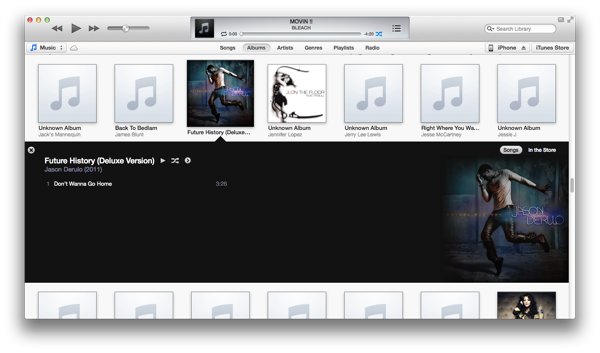
I've tried it out for a couple of days already, and as shocked as i was about the missing side bars right after i updated it, i got used to the new interface in a jiffy.


A huge thing that apple seems to be really proud of is the new album look. I, on the other hand, really hates looking at my songs through albums.


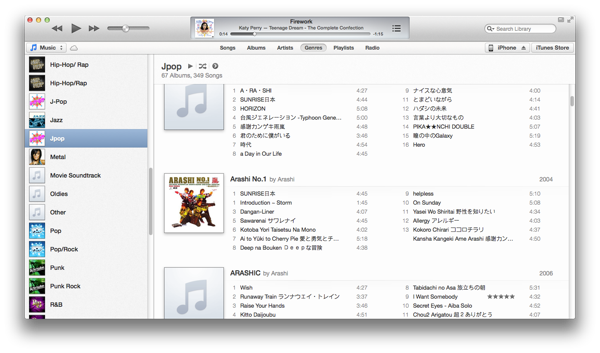
Plus… i mostly just have like… one or two songs from the whole album (with the exception of arashi of course)… so in short, my list of albums is in a terrible, terrible mess. I always only look at my song list (and i like to arrange it by date added…. i am strange? LOL)




Back to playing songs...


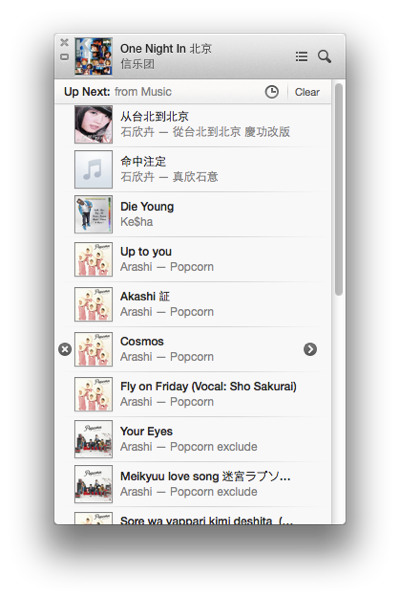
Something that got me really excited in the update is the ability to see what songs are coming up next, and change it...



One thing that really please me as well is that the new update didn’t break my application hotkeys in alfred XD
hmm…. that's about all about the new iTunes…
Overall? I think it looks very bright and clean. Very fresh looking. The best change for me would be the ability to see what songs are coming up next, or add songs to play next as i please… yup. It’s a nice update :)
Monday, November 12, 2012
iStat Pro widget
So… iStat Pro used to be THE widget for macs. Sadly the devs have completely abandoned it. They have iStat Menus but… my menu bar is OVERFLOWING already. Plus, at 16 bucks its priced rather steep… biggest issue for me is that i want a widget, not yet another menu bar item…
Well its not like there's major problems with the widget once you update to Mountain Lion. The only thing that broke for me is the processes not showing anymore… while trying to install that thing on my dad's machine i found guys in macrumor forums with fixes and all, and so i edit my widget… and bingo! Everything works for me now!
I uploaded the updated widget in the forum and on my MF account. Credits to the original creators bjango and all the guys at macforums for providing the fixes.

No more blank processes bar, hurrah!
Edit: my MF account got closed so I've re-uploaded the file to Mega. Went back to check the thread, someone' uploaded a version of iStat Nano with all the stuff fixed too. Really surprised by all the replies to my post, didn’t think I'd see so many people thanking me for uploading the 'fixed' widget.
Friday, November 09, 2012
Google - Background images are going away on November 16, 2012
Background images are going away on November 16, 2012
Thank you for using background images. As we build a more streamlined Google Search page for everyone, we’ll no longer be able to support customization with background images. So you will no longer be able to see your background pictures starting November 16, 2012.
Click Remove to stop using a background image now. Your current background image and Picasa web albums will still be available to you.
Sigh. Just when i was thinking of changing the background image that i put together sometime back…

i was still debating whether to put the kagi heya enomoto pic that i've been trying to put somewhere in my comp ><
Oh wells… in other news… my desktop picture needs a change too...
Its currently a nice patterned background… BUT with a huge list of the 20 amino acids stuck in it for quick reference during my FYP (which is long over).

Yeah… a very cluttered desktop that I'm not done with clearing yet… and i've not gotten around to look into the issue of the missing weather pic with the geek tools widget too… *goes off to re-arrange some files so that the date and time is not blocked.*
Me thinks the iTunes geek tool widget thingy has stopped working too… its been showing eyes with delight since like forever even though i've been listening to other songs… bleah :( The upgrade to ML broke quite a lot of things… I'm still wondering if its possible to change my dock like i could last time… pfttttt!
Wednesday, October 31, 2012
'Cos you have a bad day...
Yeah. Bad day indeed. Or maybe, bad days.
First up on Sunday night my dad's macbook pro kernel panic-ed. No idea what happened. I googled and realised it could be cos of the thunderbolt update error in June/July… and since my dad hasn’t used his comp in quite a while it could be due to that update…. but after two days of attempting to fix it to no avail. Plus the comp seems to be running OS X 10.8.2. Which should have that thunderbolt driver update problem. So something else???
I tried using disk utility to verify and repair the disk, but it just tells me that it can't repair the disk. Tried to make an image with disk utility to back up the files… didn’t work! Tried to use terminal to copy the files to an external hard disk, but seems like the instructions given by others doesn’t work… as with the instructions on how to back up stuff in the single user mode. Man. I know i suck at using terminal and at linux commands (more like i have close to zero knowledge) but really…?
So i gave up and tried to do a reinstall of the OS… tried it from recovery HD. And it tells me that it "Could not find installation information for this machine. Contact AppleCare."
Just great.
So i took a million years to re-dl Mountain Lion from the app store, and created a bootable start up USB stick… and tried again from there (disk utility still doesn’t work…). This time i could go past the user license agreement… but either the Macintosh HD was missing from the list of drives to install the OS in… OR the Macintosh HD was locked. Like WTF is happening man!
And i thought reinstalling the OS should be as easy as pie!
I can't delete the whole drive cos while my dad doesn’t have anything really important there… he uses his mac for saving all his photos so yeah… i wanted to save a copy of his photo library!
So i decided to take a drastic step and try installing the OS on the external hard disk and using that to boot up the comp. Turns out that the 2TB external hard disk was in the wrong format or something and i can't install the OS on it… so i had to use the 500 GB hard disk my dad got for me… thank goodness i reformatted that for specific use with my mac (though it caused a lot of problems cos when i was on xp and desperately needed SPACE, i couldn’t copy anything to that hard disk cos of the format!). So yeah… i wasn’t sure if installing the OS on the disk will affect the data in it… so i decided to play it safe and back up all the data in that small disk into the bigger one… and that took ridiculously long… (all my arashi stuff were in the hard disk, and those were my ONLY copy…) When that was finally done, i installed the OS in the small hard disk and that took quite a while… it worked though… and via some disk changing using the recovery HD, i finally got my dad's comp to boot up from my hard disk. Problem was that i still could not fix the internal hard disk zzz. Cannot repair the hard disk, cannot reinstall OS cos it still says its locked. DLed and tried to reinstall the thunderbolt driver but it said the program was for OS 10.7.4 only and the OS i installed on the ext disk was 10.8.2 so it wouldn’t run. Goshhhhhhh! Tried to 'unlock' the mac HD but to no avail either. I'm really out of ideas now… At least with the ext hard disk OS boot up though, i could finally copy over my dad's photo library. Phew. After so long, could finally back up that thing.
Thankfully that comp is still under warranty till 25th of next month. I'm gonna give a last try tmr i guess… and if it doesn’t work i'll bring it down for repairs. Really at my wits end already.
And earlier tonight…
The printer 'broke down' on me!
Gosh…
My sister's A lvld are coming extremely close, so she's studying really hard and all… and also printing out quite a lot of stuff… all the answer sheets and all… so she was as usual going to print her stuff just now… when she complained about the black ink running out. So naturally, i refilled it for her. Then the trouble began. The printer kept complaining that the black cartridge was not installed. Even after i took out and put in the thing a million times! And got my hands black all over in the process...
My sis gave up and went to sleep after emailing me the files… while i tried everything i knew… soft switch off, hard switch off (literally just pulling the cable), even googled and found out how to enter the 'maintenance mode' which although cool, didn’t help at all. I even tore open a brand new cartridge to try but it just kept saying the black ink wasn’t installed. FINALLY i came across a website that said "With the full ink installed you might try plugging in power while you hold the stop key, sometimes the error is just locked and not cleared until you power up this way. "
Yup. So that was the whole bloody problem. The error message just got stuck and despite yanking out the cable and plugging it back, it didn’t clear up. Dang. All that mess just cos of this. Its been ages since i last got my hands dirty refilling the printer ink so boy am i pissed.


And my fingertips are still smarting from yanking and putting back the ink cartridge so many times. Sheesh! All cos the stupid error message was stuck in the system… Oh wells. At least that got fixed. Still… it took me over an hour to print out that few pages of stuff. Somehow sending the data to the printer took a million years. I have absolutely no idea what was wrong. The printer, or my computer? Or was it cos i was over working my computer or anything? I really had no idea. Sighz. At least my sis has her math answers now...
Oh wells. I still have my dad's mac to settle. I'll probably give it a last try before sending it down for repairs… its still under warranty so might as well...
Okays… time to sleep! Night night!
Thursday, September 20, 2012
iOS 6 and OS X 10.8.2!
Ok, so my computer is done with OS X updates, my 3GS is now running iOS 6… all I'm left with is to wait for iPhoto and Xcode to update finish in the mac app store.
I've barely had time to discover all the new things in the new OSes yet so… i'll just post as i go.
I'll start off with the iOS.
1st up… when i checked out my phone after the OS update, the most glaring and obvious thing was the extra page page 2 the new iOS added for me… What happened? Cos there's a new icon for passbook - which pushed the newsstand app to the 2nd page. 1 thing i hate about the newsstand app is that i can't throw it in some random filer. I don't subscribe to anything so basically my newsstand is empty… but i can't stow it away in a folder either… i ended up having to drag the singtel getamped app to my music folder to make way in my 'random' folder for the passbook icon… i throw stuff like stocks, voice memos, weather, compass etc in there. Passbook looks like a great app, BUT its only great in concept atm. If stores in Singapore starts using it a lot, then it'll be truly great. Otherwise… it'll just end up being another of those 'preloaded apple apps that i don't use but can't delete'. I know starbucks have already pledged support for it, but i don't drink starbucks very often… i'll need more then just starbucks to convince me of its usefulness. Hopefully more merchants in SG will adopt it.
Another thing that's become quite obvious is the colour change in the top bar of the iPhone screen - where they have the battery icon, the time and the carrier icon. In some apps, the bar is changed to a blue hue… and it seems like the colour scheme of many things have been changed. App store is now more blackish, the settings is more blueish… in messages the top bar is now blue, making the whole app feel more… blueish. Feels like the whole colour scheme has changed when in actual fact it should be only that little bar that has changed. EDIT: ok the whole colour scheme of things have changed. It used to be blue but with a yellowish tinge. The old header bar was also white. Now both are blue...
Not sure when, but iTunes store finally works in sg. The last time i tried i only got a miserable message saying that the iTunes store isn't available for your country… iTunes store seems to have changed colour too. i still can't connect to the music store… not sure why, but the movies load up alright.
App store has changed too. The menu bar at the bottom has gotten rearranged, with updates in the middle instead of on the right side and a new genius icon added in (EDIT: not sure why but later on the genius icon was in the middle, and the updates back in its usual position).

The search page has been refined to give more details about the app right away, including a screenshot of each app… you have to swipe left and right to view each app.

It looks better now, but in a way it means you have to spend more time swiping through to look at all the search results. As other's have mentioned with the developers iOS 6 preview, you now don't need to key in the password for updating software (and dl-ing free software) and when updating apps you don't get auto kicked out to the home screen after hitting the update button… i was dumbly waiting for a response (i.e. getting kicked to the home screen) OR a message popping out to say i don't have enough space on my phone to update all the apps just now… only to realise a while later that all my apps where happily getting updated already… *facepalm* yeah i read about this change before… but after several days of hunting for apps to delete due to lack of space to update other apps… i was expecting the 'NOT ENOUGH SPACE' message to come yelling at me :X
I dug through the settings on my phone and noticed quite a few new things. For one there's the 'Do Not Disturb' setting, and a new 'Privacy' menu. In 'Privacy', you can see all the apps that have requested permission to access you twitter, Facebook and sina webo accounts, as well as your photos, reminders, calendars, contacts, bluetooth sharing, and location services….

Notice the blue top bar VS the black previously and in the app store (SS abv)

In general settings… you can force your phone to sync with your computer as long as you're on the same wifi network… honestly i can't rem if this feature was here already, i think it might be an old feature, just didn’t take much notice before…
One thing that i tried out 1st on the iPad was the new maps application. In truth the maps look lot like the old google maps - the location of the buttons and all… just that the new one has prettier looking icons and text. Turn by turn navigation is available in sg! Tried it on the iPad. Not available on iPhone 3gs tho. sighs. Not yet tried the flyover thing on the iPad either… but once again, its not on the 3gs. New clock app on the iPad too, looks good, but its not something I'd be using much even if i were the iPad owner.
In photos, you now have a photo stream menu item, and you can now create new albums in photo stream to share with others. You can even make the album open to public - meaning that the whole world can see your photos from the iCloud website.


Ah yes… the twitter and Facebook integration… now its much easier to post a tweet or a FB status update - you just have to pull down your notifications bar and 'tap to tweet' or 'tap to post'…

with the FB integration, your contacts and calendar gets integrated with FB… bad thing for me who friended like a million ppl on FB though - now my calendar is just flooded with FB bday notifications… good thing you can turn them off though - something which i just did. They let you select whether to turn off just the FB days or the FB events, so that's quite a good thing. Contact integration with FB once again pulls out all the contact of all your FB friends n throws them in your contact list. Like with the contacts from emails and multiple places, you can select which to view and which not to… and i've promptly turned off my FB's list of contacts :X


There's a whole load of other updates… like iCloud tabs in safari… VIP lists in email (which is useless for me ATM)… easier to attach photos and videos to mail - this one is a great improvement, though I'd like to see the ability to attach files (like word docs and stuff) in apps from the mail itself, rather than having to go to the app, selecting the file and then selecting share to email. Even now, we have to go to the photos app then select share… well I'd admit the share menu has gotten much much prettier now, but I'd still like to attach stuff to mails :X Now you can even directly select a photo to use as wallpaper from the photos app. No need to dig around in the settings anymore! EDIT: opps, this feature was already there previously… i just… never bothered to read all that bunch of text options… all i can say is that i previous the bright looking icons now to the old bunch of text options. Its faster to look at icons then to read lines of text IMO.


All that sina weibo integration is tempting me to open a weibo account… a bunch of my friends have been asking me to but so far i've not…. well i don't even update my blog regularly… and you still want me to keep a chinese blog? meh… i think i just might :X EDIT: wow i just tried… i actually did sign up for a weibo acct already… WOW since when lol! ok so now i can sign in to weibo on my phone n comp...
What else is there…. safari offline reading lists… not available in iPhone 3gs. Panorama photos - not on 3gs either, means i'll still have to use 3rd party apps to do it (i hardly take panorama photos anyway)… what else is there? ah… you can now send text message replies instead of picking up phone calls… good, but I'd hardly use it, at least for now anyway. Oh of course siri got better, but i don't have siri. Pinyin keyboard is supposed to be better now, but i've not tried it out yet :P (ok, i tried it out a little… the ability to mix english words in is great, but i wish for things the other way round… the ability to mix chinese words in while typing english… :X)
The thing about many of apple's updates/upgrades is that… things are just there, and they just work. They aren't very attention grabbing… its like after i updated my phone, i don't even realise anything that's changed for a while. And that's not a bad thing. I'd be really pissed if like my apps are all over the place and the whole phone has been turned upside down (or rather, inside out). Hmm… which feature do i like the most…? I think right now it'll be the easy FB status updates and tweeting. I think my dad will like the turn by turn navigation though… but its not on my phone RAWR!
For the OS X, the changes are much more subtle. The way the whole OS looks and feel pretty much remains the same. Like the iOS, the new notifications bar feature a click to tweet and click to post to FB.

To sign in to FB you go to the mail, contacts and calendars and add a FB account… same for weibo, youku and tudou… you sign in from there...
iMessages now finally lets you receive messages sent to your phone number as well… shall try it out later...
bleah. I'm on a mission to clear up some hard disk space right now… i guess i'll post later when i have more discoveries :P
Ok… i tried out in more detail the new apple apps… and i must say the picture quality for the satellite view is not very good… parts of the map are just weird bits and pieces joined together, with clear lines of the joining… can see the iPad planning out the routes and all but not sure exactly how well the turn by turn navigation works since there's no stimulation mode...
Updating...
Ok, so my iOS has finished updating. Took a while tho, the iPad finished before my iPhone did... Seems like the iPhone was taking longer to connect to the apple server or something. Anyway now updating my comp. it's taking quite a while... The OS X download itself took quite long, and worst still, the request kept timing out. Both on my lappy n my dad's. My lappy is finally done with the download n is installing it now. Looking forward to the fb integration n iMessages improvements... Shall see...

- Posted using BlogPress from my iPhone
Updating…..
Its iOS 6 and OS X 10.8.2 day!
after like… almost an hour? of downloading… finally installing iOS 6 on my phone now.

well maybe it didn’t actually take that long, but i wasn’t sure when the dl finished. PLUS more importantly i was using up all my bandwidth by updating a bunch of software form the mac app store as well… including the mammoth of a download - Xcode. Ok… now my phone is installing iOS 6 XD
Tried to dl OS X at the same time but i guess it was taking too long and the request timed out :X ouch.
Yup… looking forward to see the Facebook integration both on my comp and on the iPhone. ahhhhh my dad's lappy's DL is done… time to update his iPad :P
Despite the move enable wireless updates… i still prefer to have my phone plugged in and synced + backed up before updating… So far all the updates have been smooth but… *shrugs* just a precaution...
Loads of stuff that my old phone won't get to enjoy tho… no siri like duh… no turn by turn navigation in maps either… no flyover view…….. ah wells…
guess i'll stop here for now, bye bye!
Thursday, March 08, 2012
The Untamable Lion - How alfred and other apps made my mac just the way i like it.
Hmm… its hard to describe the kind of computer user that i am. I'm certainly more demanding than your average consumer, but i don't know too much about computers - if you tear a cpu apart there's no way I'm gonna be able to put it back (properly) for you. I know abt the tech specs and what they mean, but i don't know all the nitty gritty details like which is the newest model of graphic card etc etc… i used to think that 4GB of ram would be more than enough for my needs… that is until recently when i realized i could probably use up all 8GB of ram on my dad's comp and still be demanding for more (ok, maybe not THAT bad…).
I'm rather geekish - like how i absolutely love the geektool, but i don't qualify to be a geek. I don't know programming (save for the wee bit of perl programming we learnt in sch, but that really doesn’t count)… heck i don't even know much html. I did dabble in html for a while back when i was designing my neopet pet pages in… primary or secondary school… and than i used to play around with my blog background design before i got too lazy and just used the default blogger skins… i can modify the apple scripts other ppl wrote, but i need an example to copy and tweak because i don't know !@#$@#$# about scripting. I know a few terminal commands like how to change directory, or recently as i've been trying a lot of - how to compile/make programs (but somehow they all fail to work properly cos of some error, and than i gave up… -.-''')
Someday if i ever get the time i should properly learn a programming language… like… python? ruby? C++??? ew… so many things to learn !!$@#$!@#!
Well for the most part, i enjoy myself tweaking things on my computer through programs and things other ppl have written - since i can't write a program to save my life.
Ah yes… the title… why do i say that my computer is untamable? Well using a mac can be hard enough for those who have been used to windows all their lives… but using my mac? now that's not something for the faint hearted.
1st up my mouse shoots off at a hunted miles per hour… and with that fast speed that my mouse is running at, you're more than likely to find yourself unintentionally bring the cursor to the corner and… activate the hotspots! All of my corners do something… top left shows all the windows in the current program, top right shows expose etc etc… and if you've never used a mac before (like many of my friends…) you'll end up triggering a hot corner within 5 secs of using the mouse, and not know how to go back to the application window… my friends (on windows) who tried to use my mac when we were doing like group work and stuff all gave up within a minute. Which made me feel really bad :S
Than there's the dock icon tweaks… fill with random icons and maple characters… but that's rather trivial i guess.
Ah as if my free-running mouse isn't enough… i've also added in extra gestures like 3 finger tapping on my track pad etc with BetterTouchTool. I did add a secondary key to some functions requiring single taps though, since my palms inevitably gets onto the trackpad when typing and will accidentally trigger the actions otherwise. The thing about gestures though… is that they aren't very reliable. In spite of apple's wonderful trackpad technology, sometimes taps just don't register properly… so i've created a whole bunch of keyboard shortcuts on my mac with bettertouchtool and alfred power pack.
Since bettertouchtool has the predefined action for resizing windows to a particular size, i rigged all on those into various keyboard shortcuts… tsk… i wished i had discovered is earlier… i was having so much trouble resizing my word doc windows manually when comparing my sequences and stuff!

Now resizing windows is just a touch away!
Ah Alfred powerpack is the thing that I'm most pleased with. Well i did pay $$$ for it after all. Alfred is really the best application launcher i've come across. Many ppl use quick sliver too - i did for a while, but i liked alfred more… alfred shows a list of things, whereas quick sliver only shows one. And ah… alfred power pack is indeed powerful!
The power pack gives you a bunch of features like the clipboard manager, file browser, mini music player and more. I use copyless so i don't really use the alfred clipboard manager. But i do use the music player rather often… and the extensions and hotkeys are what i like most.
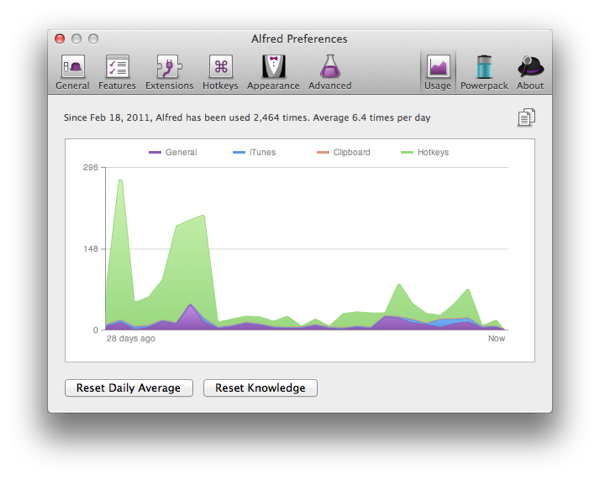
There… you can see my Alfred usage stats… i don't actually use alfred that much most of the time. Like many a times i don't need to call up an application NOT in my dock - in which case i won't use Alfred. As for app switching…. most of the time I'd use my mouse… unless when I'm very engrossed in my work than i'll find it faster and less troublesome to just use hotkeys. Like if i use the mouse i'll still have to mouse over and think about which dock icon I'm being my mouse to… sometimes when I'm focused on a particular task i end up clicking a few programs in a row till i get the right one. How come i remember the keyboard shortcuts and not the mouse position? I don't know. I guess it's also a thing of you having to move the mouse over to that exact spot where the program's dock icon is… like you have to inch your mouse a bit more to the left/right… whereas you know exactly where to place your fingers… (yeah i know I'm weird…)

Ah, the HUGE lists of extensions i downloaded. I pretty much downloaded everything i found interesting.
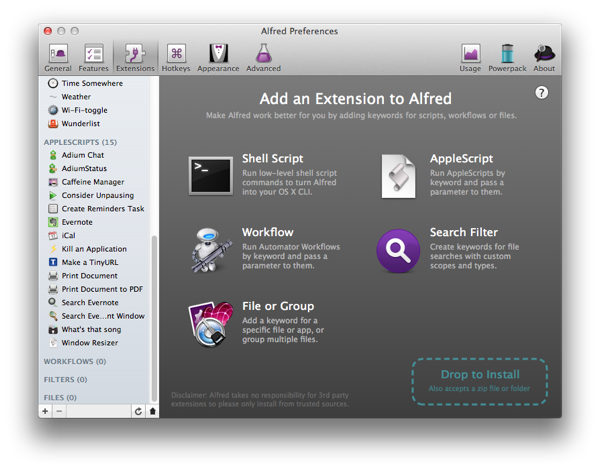
Most of them i've not used much, or at all. I can't even remember the command to trigger most of them… thankfully their presets are all very logical and easy to guess. However some of them i've used quite frequently though, like Force Empty Trash… the dilberts cartoon thing is pretty cool. Occasionally when I'm bored and when I remember, I'd use it to call up the dilbert comic of the day for 1 minute of entertainment.

Yes… my hotkeys… touchpad gestures are cool, but not quite reliable and multi-touch gestures often fail to trigger… which is why i rigged Next/Previous track and Play/Pause to a hotkey as well.
Alfred was made with the intention of allowing you to navigate around the mac w/o having you hands leave the keyboard. Indeed when I'm typing I'd like to keep my hands on the keyboard and off the mouse… but for the most part of the time, I'm not actually typing long, strenuous essays. I'd be surfing the web with my left hand on the keyboard and right hand on my mouse… even when I'm reading papers i don't have both my hands on the keyboard unless i want to make a quick note. So one hand on the keyboard and the other on the mouse is my preferred position… and as such my hot keys are mapped so that they are within reach of my left hand, and in a comfortable and easy to trigger manner too. The bad thing of course is that with all the keyboard shortcuts that i've set, I'll soon be running out of hotkeys to use. In fact as of now, nearly all the hotkeys i can have that triggers with the left hand only is used up. Command + something is left untouched, since that's what general system and program shortcuts are set to. Like Command + C for copy, Cmd V for paste, Cmd B for Bold in MSword, Cmd T for new tab etc etc… Option Something i've mapped to all my different programs. Apart from the ones i mapped in Alfred, many other programs have their own shortcut keys to trigger the program… which i've changed to Option + something for ease of usage (and easier to remember too).
Control + something belongs to the set of keys i set on better touch tools to resize my windows….
How to organize and remember hotkeys is probably one of the greatest challenge of the day… for me, i try and gave a logical link to things. For e.g.: i've always arranged my Internet browsers as (from left to right) firefox, chrome, safari… in accordance with how heavily i use each of them. So it was only logical that they follow the same order in the hotkeys. Similarly for the resizing of windows… i arrange them nicely from left to right, top to bottom so that by logical reasoning i can work out which hotkey is for which window position.
Of course, using the hotkeys frequently helps you familiarize with the keys and prevents you from forgetting them. But if you occasionally use hotkeys - frequent enough to get frustrated that you cannot remember them, but not frequent enough to remember them - you might wish to say, put a sticky on the dashboard or desktop so that you can refer to those stickies as and when needed. (E.g. today you need to constantly call up a particular program - than for that purpose u remember the hotkey).
I have two stickies on my dashboard delicate to the hotkeys from various different programs. I decided to make the list to help me organize my hotkeys as i decided to mass change the hotkeys provided in all the programs i frequently use. Most of the time the hotkeys are made of two modifier keys + 1 other key… and i don't like it that way since i always cannot remember which are the two modifier keys i have to press. Hence the reason why i unified almost all the program shortcut keys to work with Option + something else.
So there you have it - this is how i've modified my shortcuts keys to make using my mac more efficient, comfortable… and even more fun XD
till next time! XD
Subscribe to:
Posts (Atom)