Since I've ordered an iMac for myself online and it's stated to arrive by Tuesday, let's do a rundown of the most important apps that I'll be installing on my new computer.
The most important apps
1) Chrome, and Firefox.
This one is a no-brainer. It's so basic, such an integral part of my life that I almost forgot that you have to install it yourself. Of course it's the first thing I'll download and install.
Sure, there's Safari... But with all the numerous extensions on the Chrome app store, and the ability to sync bookmarks and extensions across platforms... Chrome is my go to browser now, even replacing Firefox that I was enamoured with previously. I still use Firefox occasionally though, because I have multiple accounts of things like LJ, tumblr, etc, so instead of having to log in and out, I just log in to a different account on a different browser.
After those two, I'll probably pick up Opera as well, though I rarely use it.
2) Microsoft office suite.
Again, there's Apple's numbers, pages, and keynote... But microsoft office still rules my day. I use that at work. All my documents are in the office suite format... Yeah. It's a must. Only caveat is that I'll need to either get a usb cd/dvd drive fast, or I see if I can hook it up to the laptop and read the cd remotely because I have an old version of MSoffice in a CD, and the new iMacs don't have a CD-rom drive.
3) Alfred.
Alfred 3 just got released, rejoice! I've blogged about that app before, a long time ago... And yes, I'm still using that thing now. It's just so convenient! The latest version even brings text expansion ability into the table, so you might not even have to buy a separate text expander/typinator app anymore!
Ok. Let's backtrack a little to what Alfred is. It's well... A lot of things.
At it's most basic, it's an app launcher. A search box. It can find your files. It's a calculator. It's like a soaped up version of spotlight. But what makes it really shine, it when you pay for the powerpack. Or become a 'mega supporter'. I became a mega supporter after paying once for the powerpack features... And I must say I regret not becoming a mega supporter earlier. By becoming a mega supporter, you get all the updates free, for life. Even through major revisions of the app. As a powerpack supporter, you only get updates free through one major revision. And it only costs twice as much to be a mega supporter. This is the third major revision that Alfred has been through since I started using it, so basically I've gotten my mega supporter money back.
So what's in the powerpack you ask? Well. A lot of stuff.
Besides the snippet/text expansion mentioned earlier, you things like a music player, workflows, clipboard, hotkeys, shell integration... And a lot more.
My single most used feature would be the clipboard manager. I cannot live without clipboard managers. I had to spend my time searching the web for a decent clipboard manager to use on windows when I started using windows again at work.
Hotkeys. You can set up a ton of hotkeys on Alfred. And I have hotkeys for opening Chrome, Firefox, Word... For playing and pausing music... For skipping tracks... Yup. I love hotkeys.
The iTunes controller was used often too, when I my own lappy was still usable. These days I'm using my dad's lappy and my songs aren't here so... No more music listening on the computer for me.
The workflows. Ah. Workflows. You can make a note in Evernote from the Alfred search box, make a tweet, convert currency or units... Or you can launch a shell script, control your favourite app... The possibilities are endless, and the interface is presented in an easy to use way, so that even programming noobs like myself can use with ease. Or, better yet, you can simply download one of the many workflows that other Alfred users have made.
Of course, you can use change the theme and appearance just to way you like it. Pretty cool app, and definitely one of the first few I'll be installing.
4) Typinator
It's a text corrector and snippet expander... And has other cool functionalities (that I hardly use though) like being able to run shell scripts. I mostly use it for the auto correct feature. Snippet expander is really cool too, if I'm writing stuff a lot. Sure, Alfred just got the snippet expansion capabilities as well... But nope, Alfred can't correct regular typos for you like 'teh' to 'the', not unless you program it to I guess. Typinator has a humongous list of common misspellings also built in for you. Plus, I got the app a real long time ago. You can pick Text Expander over Typinator. Personally I think they are both about the same. I don't use the text expansion ability as much now since I do less work at home these days. But when I was writing my undergrad thesis it was extremely useful. I basically just keyed in the full name of the protein I was working with and never had to type that thing again. Ever. Setting up snippets for emails is very useful too, and I certainly spent a lot of time search for a windows equivalent to use at work (turns out there's PhraseExpress on windows, and gasp, it's free). So I type 're1' and my email ending pops up. Or 'dz1' for a email opening... Or 'quote1' for the whole shebang on my name, title, and office address when asking vendors where to send the quote to. Very neat, and saves me a lot of time typing the same thing, or even looking up things like my office address. Like. Who memorizes those stuff right? Well, at least, not me. Anything that I find myself typing more than once, I'd make a snippet for it. Sure, you can copy and paste, but then you have the save the text somewhere. And open that up to copy. So unless you're using the text right away, text expanders are the way to go.
5) Dropbox.
Hidden away in the finder... I almost forgot this gem. It maybe now shout out to you like Chrome does. but it's there in the background working all the same. I use dropbox to backup my iPhone photos, and to sync files between computers... Say my ebook collection. It's definitely an app that I need to install whenever I switch to a new computing device.
6) Evernote
It's the favourite writing app now. I write my fics there (well, my fics are short, so it works great), I save important snippets of information there. I save important emails there (thanks to outlook integration!). It's my to go place for information storage. Sure there's Apple notes that I also use on the iPhone... But for anything that I might be working on in the office? I'll put it on Evernote for sure. I've got my entire fanfic collection saved in there too. With the ability to make notebooks and sub notebooks (essentially folders and sub folders), you can organise you notes really well, and even share the notes with others. I personally don't see the need to pay for the service though, since I tend to only use it when I have Internet and thus the greatest premium feature - offline notebooks - doesn't appeal to me. (You need space on your device for that too, and my phone doesn't have enough space...)
7) Dayone
My favourite journalling app, that I've been using for over 3 years now. Also recently imported all my LJ entries in there. It's Mac and iOS only though, but still good enough for me. It also recently got IFTTT functionality, so I've been using IFTTT to put my fb status updates and instagram photos into my journal as well.
8) Better touch tool
The hotkey master for your mouse, trackpad, and keyboard. I rig up windows positioning with this app. I put this in number 7... It's not one of the things that I'll notice is missing right away... Till I need to reposition a window and hit Alt-V and hey! Why is nothing happening??? Yup. Then I get pissed and start hunting for better touch tool. Or a similar app on Windows. I like hotkeys, and hotkeys to help me place word documents side by side, just in a particular quadrant of the screen etc... It's essential for me. Esp in the office when I have a big screen... Or when my iMac arrives. There's so much real estate on the screen and you need to be able to use it effectively, and efficiently.
I'm not quite sure if you can do the same with Alfred workflows, but I got better touch tools set up before Alfred workflows were even called workflows, so I didn't bother trying. Like Alfred, you can save a preference file and transfer it between computers, and that's exactly what I did when switching to colonise my dad's lappy.
9) Bartender
Oh this one. Again, another app that you don't really notice till it's gone.
Well, for me that is.
Reason? Because I install on much stuff with menu bar items. And on the 13 inch macbook pro, there's not much real estate space. The icons are often covered by the menu bar items. And so I need something like bartender to help me manage the menu bar items... Hiding those that aren't needed to be seen, but that I need the app running in the background.
I used to have more of those apps in my menu bar, but not on my dad's lappy. I didn't install as many apps here.
10) Razer Synapse
Ok. This is a very recent addition. But since I am using the razer widow and mamba... And I spent my time configuring the lighting... Yup, you bet I'll install this. I've changed the layout of my keys too, so alt is now command and vice versa. So I'd alt-c to copy, which is the same key positioning as cmd-c on a mac keyboard layout. Unfortunately for me... This leads to some confusion when I'm at work... Since the keyboard layout is the same windows type as the widow... I end up pressing alt-c to copy a lot. Till I realize that it doesn't work and then I'd realize that 'Oh! I'm not on the mac!'. Didn't use to be so much of a problem because the mac and windows keyboard layouts are slightly different. Oh wells.
So that's the list of most important apps that I would install right away.
Then next comes the ones that are important when you need them. But aren't necessarily going to be needed right away. Like, tier 2 apps so to speak.
Important, but not that urgent
1) VLC player.
My go to player for video files. It plays a HUGE variety of video formats, has de-interlacing functionality, lets you skip videos back 3 seconds, and most importantly, allows you to assign hotkeys for many of it's functions. As someone who did video translations, ultra short backward skips are really important to me. Often times I'll just be stuck at a particular phrase, trying to figure out exactly what was said. And I don't need to waste time going back 30 seconds and listening to everything else all over again. I might end up forgetting what I was trying to listen out for even. So yup, VLC is the player for me. Not to mention that it pretty much handles everything that you throw at it. And you can re-sync the audio track or subtitles timing too. Love it.
Of course... Being the Arashi fan that I am, with a ton of different videos from various sources, I also have mxplayer and quicktime to supplement VLC, for the rare case that something might not work on VLC... Or so that I can check if the video glitch is due to my computer/vlc/the video.
2) MarsEdit.
My favourite blogging app on the mac... Unfortunately though... Support of it seems to have waned and this thing unfortunately doesn't play nice with LJ. I have to go back to LJ and add in the tags and things like LJ-cut myself. Can't blame them though, considering how dead LJ was, and still is.
Still, the ability to paste photos/screenshots into the editor, and have it automatically upload the photos for you later one is really a life saver when it comes to making show reviews. Since each of my show review is filled with like, hundreds of photos... The auto uploading feature is really, really a life saver. To be honest, I don't use it these days since I don't do TV show reviews... But once I get back to doing them? It's definitely MarsEdit for me. It plays nice with blogger and wordpress so that's great.
3) LINE
My favourite group messaging app. Well, I use whatsapp and fb messenger too, but those two are browser based when on the computer. Comparing the three messenging apps on the computer, I absolutely hate whatsapp. It's the weakest of them all. Because it's mobile based. They don't have their own servers that keep your data. Nope. Instead, the web browser app uses wifi to connect to your phone, and syncs messages from your phone to the browser. This means that the connection is lost pretty often. Like when you phone hasn't been used for a while, the connection tends to go off. On the other hand, both LINE and fb messenger lets you connect directly to their servers to download the messages. No phone required (save for the initial set up for LINE).
LINE of course, has the added advantage of having a desktop app (both for mac and windows). Ok, on the other hand you can't access LINE from the browser... But I prefer having a separate chat app, rather than open a facebook chat just so that I can chat. I know, FB debut a messaging only website sometime back... But the page looks bad. I still keep a tab open in fb just to chat even now.
Hmm stickers. LINE has much cuter stickers than FB IMO, and the way of associating words that you type in chat with relevant stickers? That's something that FB could really really learn from. I hardly even use stickers on FB because it's too troublesome to search though my hoards of sticker sets to find something relevant to use. Sure, they recently included a search function... But really? I won't purposely look for a sticker. I just type. So that's one functionality FB could definitely use. As for Whatsapp? Geez. That lousy thing doesn't even have any stickers! Sheesh! Sure there's emojis, but what are emojis! These days, we want STICKERS!
4) Megasync
For downloading files from mega.co.nz. Well, this is only if you use mega. Which I do, a lot. When I'm getting my Arashi video files. So this is a must for me. Similar to Megasync would be apps like baidu pan, though they only have that for windows.
5) Keka, unarchiver, RAR extractor free, other file unzipping apps.
The unarchiver is supposed to be the best, and free unzipping app out there, but often times it refuses to unzip the file for me. Like, an ad asking you to select the file types it can handle pops up. Which you then dismiss... And nothing happens to the file. And then you rinse and repeat till the app finally, by some stroke of luck, decides to unzip the file for you. As a result, I got Keka. Yeah. I paid for that thing... Because it gives me an easy way to zip up my files and put a password for them without having to open up terminal. Because I'm a forgetful person when it comes to terminal commands and I hate having to google how to do it each time. And for some unknown reason, I can't find a decent free app on the mac that lets me zip files with password. Sheesh!
As for why I need that many unzipping apps... It's because I download Arashi files from a ton of sources and somehow some files that can't be unzipped with one program unzips fine in another... *shrugs*
6) YoruFukurou
Literally meaning 'night owl' in Japanese, YoruFukurou is a very elegant little twitter client for all your tweeting needs. It supports multi account, shows your lists, allows you to make searches... And most importantly is very light weight. By that, I mean that it takes up little real estate space. A lot of people use tweet deck, and I've tried it but dislike it. YoruFukurou is more minimalist in my opinion, and I recommend giving it a try.
6) Growl
Ah... The first of the many apps that stay hidden for the most part. Growl is a notification app that will enable apps to well, notify you of changes. Be it a new tweet mention or a new song playing... You can set the notification style, timing, which notifications to receive and so on.
7) NTFS for mac, Fuse for OS X
I can't remember exactly which app is needed anymore. I mean... I blogged about this a long time ago, regarding how to get you mac to read FAT (aka windows format) drives. I subsequently decided to shell out the buck and pay for it. It was on offer on one of the numerous mac app site that I subscribe to, and they bundled if with a program that lets windows computer read mac formatted drives too. If you are wondering why the hell your mac can't read your disk drive... Well, here's why. It's in the wrong format. You either have to reformat it, or get an app like NTFS and Fuse to let your mac read the drive. When I bought my seagate HD last time, they gave a driver that lets you read windows formatted seagate drives on the mac. Says it only works for seagate hard disks, but since the rest of my hard disks were mac formatted, I couldn't try. Still I found it really slow and problematic though... But my laptop was already really aged by then so I don't know who to blame. I subsequently transferred all my files out of the HD and reformatted it to mac format. I've not used it ever since either, since it's a non-portable drive that requires external power. Nope, no more HD drives that needs external power for me. Too troublesome!
Other Apps that I will install
Ok, here we are at the tier 3 apps. Apps that provide great functionality... But it's in some area that I hardly use.
1) Photoshop, and the whole Adobe creative suite.
Ok, I got this sometime ago on a CD... So I need that darn dvd drive again. I don't use it *that* often, but I do use photoshop every now and then. Would definitely need to pick up on illustrator as well... Though I have no idea when that's going to happen.
2) Calibre.
All, the ebook management app for my kindle. Well, that's not the only thing calibre can do of course. You can use it to convert PDFs and epubs to mobi format (or vice versa) too. If you have a lot of ebooks, calibre provides a nice and easy way to manage your files. You can sort the books by titles, author etc. And if you have a kindle? Calibre lets you mail the books directly to your kindle. No wires needed.
3) Mirovideo converter
I use this mainly to rip CMs into mp3s. For my mixlr radio broadcast. It's really lightweight app that does the job quick. No fanciful menus and stuff. Which you don't really need anyway. It can also help you to 'downsize' your video to a lower quality so that you can save space on your mobile. But with beautiful retina displays on the mobile these days... I'm not sure if anyone would do that anymore...
4) Mixlr
Well, for me to do random mixlr broadcasts of course. Nothing else there is to this.
5) Dropzone 3
A cute little menu bar app that lets you drag stuff to it. You can set the short cuts you want, an icon to upload the image your drag there to imgur for example. Or to open up whatever file in whatever program... Convenient, though hardly part of my work flow.
6) Popclip
A little pop up that appears when you highlight words, that lets you look the word up in a dictionary and so on. Good to have but not essential to my work flow.
7) Handbrake.
If you work with videos, then you'd have heard of this. It's a great app for ripping dvds, converting videos, and burning video subtitles. I hardly do any of that though so... :P Usually my teammate handles that part for me.
8) Aegisubs
A fantastic, free subtitling program. It lets you time the subs, set colors, fonts... You can even do karaoke with that thing. Again, I let J handle all that for me so I'm blissfully unaware of the inner workings on this program.
9) Artrage 4
We got this app when we got the wacom tablet. This is better than photoshop for drawing, especially if you're drawing anything more than simple black and white cartoons. In fact, this app lets you paint. Oil painting style. You can digitally mix then paint and stuff too. I don't do well in art in terms of drawing... But I guess I can always install this for fun...
10) Ink
I got this app before we got the wacom tablet. It lets you turn your mac trackpad into a drawing pad. Great for people who want to try doing some digital art but don't have a tablet. Sure the trackpad isn't very big... But trust me, this is way, way better than trying to draw with a mouse. Also, your computer screen is larger, and the app lets you zoom into a particular area of the screen to draw, so I do think you could get a better experience with Ink than with your phone.
Of course, nothing beats the iPad Pro and Apple pencil for digital drawing IMO. But then I've not had a chance to try the Apple pencil yet. Darn you stores! Why don't you let us try the pencil! :(
11) Teleport
This is great if you have more than 1 mac. It essentially lets you control multiple computers with a single mouse and keyboard. Pretty cool, but I don't see myself using multiple computers at the same time much since well... My lappy is basically dying.
Ok. I think that about covers most of the major apps that I'll be installing.... On the other hand... There are some widgets that I must have. Even though Apple has completely the dashboard widgets and there's even speculation that the dashboard will be gone before long... I really do like my dashboard and the widgets the way they are. Especially love the sticky notes feature. I clip random bits of information that I'll only need on my computer there. It's right there at your fingertips. Or with the moving of the mouse to the bottom left hand corner in my case. I like to have my dashboard as a translucent overlay. Not as a separate space. So that I can refer to my digital sticky notes and check the widgets I have...
Widgets
1) iStat Pro
They don't even make this anymore. You have to get the file off someone online... I know I had it uploaded somewhere... They now make it a menubar app and charge you for it. Well, I have no problem with paying a few bucks on a good app that I know I'll be using for ages... But alas, I have more than enough stuff crowding my menu bar as it is! I like it on my dashboard, thank you.
2) Screenshot plus
For al the random times when I want to take a screenshot. Sure, there are shortcut keys for that. But can you really remember all the shortcut keys? I think it's cmd+crtl+shift+4 to drag an area of the screen for a screenshot and copy the thing to your clipboard. I think. It's been a long time since I did reviews. But yeah... How about saving it to your desktop instead? What key is it? You can google. Or just get a widget to handle it for you.
3) Organized
A soaped up version of the calendar! You have notes, to-do list, and you can set multiple time zone clocks too.
4) TunesTEXT
For displaying the lyrics of the song that's currently playing in iTunes. Lyrics are pretty hidden in iTunes... TunesTEXT enables you to quickly refer to the lyrics, and get on with work.
5) Currency Converter
Ok, I admit I used this a lot more often in the past... These days google is really smart and you can just do a quick google search instead. Currency converter lets you compare multiple currencies at once though, an advantage if you are trying to convert to multiple currencies every time.
6) PEMDAS
Hands down the best widget calculator available. It's a scientific calculator, right on the widget, for all your scientific calculation needs.
7) LunarPhase
Ok, this is just for fun. But it's really interesting to see what phase the moon is right now. When is a full moon coming? Is it a crescent moon today? Incidentally, the app says it's a full moon today. Hmm, I should look out the window eh?
8) Other widgets...
There's loads of other purpose built widgets out there... Even though they're most likely very very old. If you keep playing scrabble you might want to check and install a unscrambler widget. Or maybe a widget to countdown to your big day. Or maybe something to play a plain old game of snake, or a digital lava lamp to waste your time away. Or you could simply check the weather with the stock weather widget.
It seems unlikely at this stage that Apple will revamp the dashboard... But I do hope they keep it. For one, I'd really, really miss it if it's gone.
Showing posts with label Apple. Show all posts
Showing posts with label Apple. Show all posts
Sunday, May 22, 2016


Saturday, May 30, 2015
Apple, macs, iPhones and Android
So, I've been keeping a lookout in the shops for the new macbooks with force touch track pad for a while now... Well whenever I drop by the malls at least. Finally got to see it maybe two weeks ago after an unintended visit to the mall. Rainy days meant long queues for the shuttle bus... And since I hate waiting, I decided to take the risk in trying to catch the public bus today. The gamble failed terribly though, when I missed two buses on the way to the bus stop. Oh wells. Thought I'd try the bookshop and get some glue while I'm at the mall, but insanely long queues made me change my mind instantly.
Thankfully for me though, spotting the gold macbook in nubox made the wasted time worthwhile.
Some quick thoughts after an extremely short hands-on session.
The first thing that I checked out was the force tough function. But first, I had to find something to force click on. Since they had cleverly use parental controls to block all but the apple Web page, I decided to try Notes instead. It'll give me a good opportunity to try out the new keys with the butterfly mechanism too. On the force touch, it took me a while to get what a 'force click' actually is. It didn't work at first, till I realised that you really do have to press pretty darn hard for it to be considered a force touch. It's like clicking down a second notch. It's a further level of resistance, like the second notch on a pipette. When the technology was first unveiled in the Apple watch, I was worried about accidental force clicks... But after trying it out, I'm happy to report that you can't possibly make accidental force clicks. You have to press really darn hard, way harder than normal, for it to register as a force click.
Well perhaps more so than the force click, the new keyboard with the butterfly keys would catch you attention first. It felt weird typing on the new keyboard. It’s a dull thud when hitting the keys, because the travel of the keys is way, way lesser than the old one. It doesn’t take that long getting used to typing on the new keyboard - I could touch type without any errors in a few moments… but the sensation of hitting the keys felt weird. It’s not as bad as the soft keyboard with microsoft’s surface tablet though, because unlike that keyboard, these butterfly keys actually do have some travel. Just way less travel then the old one. I guess it’s something that takes a bit of getting used to. It’s the tradeoff between having a ‘good typing experience’ and having such a ridiculously thin macbook. It’s as thin and light as advertised. holding the machine feels a little unreal even. Soon you’ll be able to spot youtube videos of people using the new gold macbook to cut cabbages and the like.
The full sized left and right arrow keys does feel a little unfamiliar. I suspect it’ll take a while getting used to the location and feel of the arrow keys as you fumble around for the left key while accidentally pressing on the option key in the meantime.
Unfortunately, it was pretty bright in the shop and I didn’t think of checking out the new individually lighted keys of the keyboard. Some reviews have stated that the keys weren’t as properly lit up as Apple claimed during the keynote. The lighting was uneven and there was light leakage.
Personally, I’m really excited by the new technology in the macbook, though in it’s current form the macbook isn’t for me. It’s great if you’re a light computer user, mainly using it for web surfing and maybe some simple word processing. It is a full fledged computer in it’s own right, but fundamental things like lack of storage space, and the availability of only a single port would prevent it from becoming my main computer. It’s also the same lack of storage space in the macbook pros that’s pushing me towards getting an iMac instead of a new laptop this fall. Well, I’m hoping that history repeats itself and that Apple announces the 21.5 inch retina version of the iMac at least. Definitely looking forward to getting a new computer. Something went wrong with Total Finder last night, and I took over 40 minutes restarting my lappy twice, before it would run smoothly… -.-‘’’
Summer means it’s buzzing with news from Techland. With the google I/O conference two days ago, and the Apple WWDC coming up on the 8th June, there’s plenty of Andriod and Apple news floating around. My only regret is that I’ll be in Australia for holiday on the 8th. No more watching of WWDC live for me :( It’ll be what… 3am? in Australia during the conference. No way I’d be able to stay up till so late while on holiday! (And that’s if the internet in the hotel is even fast enough for me to stream the video live!) Guess I can only read the news the day after… if I even have time.
But yes! Exciting news from Google. Android pay, Google’s answer to Apple pay is finally here. New photo application for backing up your photos and videos called Google Photos, with UNLIMITED storage. Google Now is further enhanced, and a new OS for IOT. The Google Photos app is available on both android and iOS, and I’m definitely going to check it out. (yes, it’s free).
Loads of Apple rumours about iOS 9 floating around too. Dual screen for the iPads? Force touch for iPhones? Better Apple maps? San Francisco font on the iOS? I’d say the new font is highly likely. Apple made the new font for the Apple Watch. It’s only natural that they will move it to their rest of the Apple devices. Similarly for the Force Touch. MacBooks have gotten it, it’s only natural that it will fine it’s way into iPhones. It’s only a question of when. Would it be this year, or the next? I certainly hope it’ll be this year, since I’m getting a new phone this year… no thanks to my dead iPhone 5s.
I’ve been playing around with my xiaomi quite a lot… and in conclusion, I still prefer a smaller phone. The xiaomi is a torture when I have to use it one handed… like when I’m talking to my pals through Facebook message (well, when I say talking, I mean messaging) with my left hand, while my right hand is busy feeding myself a piece of chicken or whatever I was having for lunch that day. Or when the trains get ridiculously crowded. I’ve actually dropped the phone before (and not just once) because I was trying to reach for some far away button. Xiaomi has a one handed option, but calling up that option is really troublesome - the command often fails to execute. And even then, typing on the suddenly reduced screen size is difficult - I make more errors than usual… and it really defeats the purpose of buying a phone with a large screen.
So… June is practically here already. Just another 4 more months to bear. I really can’t freaking wait to get my hands on a new computer and phone. Especially the computer. My little one has been really brave and tough to last me for all these 5 years, withstanding all my abuse. I bet it’ll still last for years to come, but it can no longer handle that level of performance I demand from my devices. Already about two or three years ago I’ve stopped using 4 browsers at once because the system could no longer take it. And now, sometimes I quit every single program that’s unused - even things like iTunes, because the computer/ram just can’t quite handle things as well anymore. Guess it’s especially bad now that I’m doing video subbing. I tried to open ageisubs so that I could do the timing myself, but the little icon just jumped around for 10 minutes before I finally gave up waiting and force quit the app. I guess the mac would perform better once I strip down all the apps to leave just a few bare essentials… but doing so would mean I can’t use it as my primary computer anymore. In other words, I need another computer.
How many more days till the Apple fall keynote?
I need to countdown!
Thankfully for me though, spotting the gold macbook in nubox made the wasted time worthwhile.
Some quick thoughts after an extremely short hands-on session.
The first thing that I checked out was the force tough function. But first, I had to find something to force click on. Since they had cleverly use parental controls to block all but the apple Web page, I decided to try Notes instead. It'll give me a good opportunity to try out the new keys with the butterfly mechanism too. On the force touch, it took me a while to get what a 'force click' actually is. It didn't work at first, till I realised that you really do have to press pretty darn hard for it to be considered a force touch. It's like clicking down a second notch. It's a further level of resistance, like the second notch on a pipette. When the technology was first unveiled in the Apple watch, I was worried about accidental force clicks... But after trying it out, I'm happy to report that you can't possibly make accidental force clicks. You have to press really darn hard, way harder than normal, for it to register as a force click.
Well perhaps more so than the force click, the new keyboard with the butterfly keys would catch you attention first. It felt weird typing on the new keyboard. It’s a dull thud when hitting the keys, because the travel of the keys is way, way lesser than the old one. It doesn’t take that long getting used to typing on the new keyboard - I could touch type without any errors in a few moments… but the sensation of hitting the keys felt weird. It’s not as bad as the soft keyboard with microsoft’s surface tablet though, because unlike that keyboard, these butterfly keys actually do have some travel. Just way less travel then the old one. I guess it’s something that takes a bit of getting used to. It’s the tradeoff between having a ‘good typing experience’ and having such a ridiculously thin macbook. It’s as thin and light as advertised. holding the machine feels a little unreal even. Soon you’ll be able to spot youtube videos of people using the new gold macbook to cut cabbages and the like.
The full sized left and right arrow keys does feel a little unfamiliar. I suspect it’ll take a while getting used to the location and feel of the arrow keys as you fumble around for the left key while accidentally pressing on the option key in the meantime.
Unfortunately, it was pretty bright in the shop and I didn’t think of checking out the new individually lighted keys of the keyboard. Some reviews have stated that the keys weren’t as properly lit up as Apple claimed during the keynote. The lighting was uneven and there was light leakage.
Personally, I’m really excited by the new technology in the macbook, though in it’s current form the macbook isn’t for me. It’s great if you’re a light computer user, mainly using it for web surfing and maybe some simple word processing. It is a full fledged computer in it’s own right, but fundamental things like lack of storage space, and the availability of only a single port would prevent it from becoming my main computer. It’s also the same lack of storage space in the macbook pros that’s pushing me towards getting an iMac instead of a new laptop this fall. Well, I’m hoping that history repeats itself and that Apple announces the 21.5 inch retina version of the iMac at least. Definitely looking forward to getting a new computer. Something went wrong with Total Finder last night, and I took over 40 minutes restarting my lappy twice, before it would run smoothly… -.-‘’’
Summer means it’s buzzing with news from Techland. With the google I/O conference two days ago, and the Apple WWDC coming up on the 8th June, there’s plenty of Andriod and Apple news floating around. My only regret is that I’ll be in Australia for holiday on the 8th. No more watching of WWDC live for me :( It’ll be what… 3am? in Australia during the conference. No way I’d be able to stay up till so late while on holiday! (And that’s if the internet in the hotel is even fast enough for me to stream the video live!) Guess I can only read the news the day after… if I even have time.
But yes! Exciting news from Google. Android pay, Google’s answer to Apple pay is finally here. New photo application for backing up your photos and videos called Google Photos, with UNLIMITED storage. Google Now is further enhanced, and a new OS for IOT. The Google Photos app is available on both android and iOS, and I’m definitely going to check it out. (yes, it’s free).
Loads of Apple rumours about iOS 9 floating around too. Dual screen for the iPads? Force touch for iPhones? Better Apple maps? San Francisco font on the iOS? I’d say the new font is highly likely. Apple made the new font for the Apple Watch. It’s only natural that they will move it to their rest of the Apple devices. Similarly for the Force Touch. MacBooks have gotten it, it’s only natural that it will fine it’s way into iPhones. It’s only a question of when. Would it be this year, or the next? I certainly hope it’ll be this year, since I’m getting a new phone this year… no thanks to my dead iPhone 5s.
I’ve been playing around with my xiaomi quite a lot… and in conclusion, I still prefer a smaller phone. The xiaomi is a torture when I have to use it one handed… like when I’m talking to my pals through Facebook message (well, when I say talking, I mean messaging) with my left hand, while my right hand is busy feeding myself a piece of chicken or whatever I was having for lunch that day. Or when the trains get ridiculously crowded. I’ve actually dropped the phone before (and not just once) because I was trying to reach for some far away button. Xiaomi has a one handed option, but calling up that option is really troublesome - the command often fails to execute. And even then, typing on the suddenly reduced screen size is difficult - I make more errors than usual… and it really defeats the purpose of buying a phone with a large screen.
So… June is practically here already. Just another 4 more months to bear. I really can’t freaking wait to get my hands on a new computer and phone. Especially the computer. My little one has been really brave and tough to last me for all these 5 years, withstanding all my abuse. I bet it’ll still last for years to come, but it can no longer handle that level of performance I demand from my devices. Already about two or three years ago I’ve stopped using 4 browsers at once because the system could no longer take it. And now, sometimes I quit every single program that’s unused - even things like iTunes, because the computer/ram just can’t quite handle things as well anymore. Guess it’s especially bad now that I’m doing video subbing. I tried to open ageisubs so that I could do the timing myself, but the little icon just jumped around for 10 minutes before I finally gave up waiting and force quit the app. I guess the mac would perform better once I strip down all the apps to leave just a few bare essentials… but doing so would mean I can’t use it as my primary computer anymore. In other words, I need another computer.
How many more days till the Apple fall keynote?
I need to countdown!
Saturday, March 28, 2015
Loot!
So I went to the IT Show last week… and I’ve finally gotten around to talking all the photos and sharing. Went on both days… and mum got a Samsung Galaxy Tab S 8.4 inch (What a long name!) on Sunday too. No photos of that though hahaha. I only took photos of my own loots.
Still have not finished ‘setting up’ all my loots. Well basically the USB fan and the new table lamp. Because my old table lamp is still working! And because my computer table is way too messy to set up the other fan…
Loads of photos coming up!

But yay for new bag packs! I hope this one lasts longer than the previous! The previous one only lasted like… maybe… 2 years? Or 3? Really short! I really like the build. And it has quite a lot of compartments for me to put all my little stuff (pens and what not!). Oh and…. the bag pack model name is really cool too. KING COBRA. Hoohohoho. I’m born in the year of the snake. Perfect.


Ok. That’s all the loot from the IT show. No BIG items like lappys because we’ve all switched to using macs (all authorised dealers here, so no price discounts at the IT fair). Save for the tablet. Next BIG item will be my mac later this year I guess.
Saturday, January 31, 2015
Phone update...
So iOS has a new update. I didn't want to update it at first, but then I realized my phone had lesser and lesser free space, despite the more and more apps that I was deleting, and I hadn't downloaded any new apps! So I went to check the update page, apparently the phone automatically downloaded the update on it's on. Ok fine. Since you downloaded, I'll just update then... It's just a small update, shouldn't take long right? So I couldn't be bothered more and just updated the phone, without bothering to sync with my computer. The last time I synced was like 5 days ago... and some of my apps had undergone quite some changes since then. And my iCloud storage is full thanks to all the photos I took in China, so it hasn't synced to iCloud in ages. But it should be fine... it's just a small update right? Right?
As they say... things you least except to go wrong often goes wrong. Bravo. After the tiny status bar below the apple logo filled up, the phone restarted... and yay. Out comes that dreaded icon asking you to connect your phone to iTunes. Great.....
A long while later after iTunes finally started up (closed it to save a tiny bit of ram), it asked if I wanted to do a factory reset, or an update. Even after I clicked the update, it still came up with a warning that if it can't update successfully, it'll have to do a factory reset. -.-'''
Great.
So iTunes downloaded the software all over again, and unpacked it, and slowly updated my phone. Thankfully the update worked. Phew. And my phone now has over 880 MB free, compared to just 350 MB earlier. Sheesh. Now I have so much free space! Still have to quickly finish uploading all those photos to all my social media sites though, then I can delete them... that'll free up over 2 GBs of space!
Sunday, March 24, 2013
Apple Disk Image - Wikipedia, the free encyclopedia
Apple Disk Image - Wikipedia, the free encyclopedia
been wondering what a while now what the letter DMG stand for... finally went round to checking it out
been wondering what a while now what the letter DMG stand for... finally went round to checking it out
Tuesday, January 29, 2013
Apple Updates iPhone, iPad Software | TIME.com
Apple Updates iPhone, iPad Software | TIME.com
ahhhh yet another software update. unfortunately for my 3gs... it doesn’t do anything/much since i don't have siri, don't have flyover, don't have 4g/LTE....
yeah u get the idea.
ahhhh yet another software update. unfortunately for my 3gs... it doesn’t do anything/much since i don't have siri, don't have flyover, don't have 4g/LTE....
yeah u get the idea.
Apple to Sell 128GB iPad Starting Next Tuesday | TIME.com
Apple to Sell 128GB iPad Starting Next Tuesday | TIME.com
oh great... just when i need/have to consider buying an ipad for my work... apple gives me one more option, and one more headache.
to wait or not to wait for march and hopefully an ipad refresh? that is the question.
oh great... just when i need/have to consider buying an ipad for my work... apple gives me one more option, and one more headache.
to wait or not to wait for march and hopefully an ipad refresh? that is the question.
Wednesday, January 23, 2013
The Slow but Almost Certain Demise of Apple’s OS X Dashboard | TIME.com
The Slow but Almost Certain Demise of Apple’s OS X Dashboard | TIME.com
man I'd be really sad if/when it gets culled too. Ok maybe not if, but when... unless a miracle happens and Apple does something to revive the dashboard... but development in dashboard widgets have indeed come to a standstill. I use the dashboard a lot. I've got a scientific calculator there, a screenshot taking widget, iStat pro, countdown timer, 3 sticky notes worth of information, a calendar app... and more. I've filled up my entire dashboard with widgets and the whole she-bang is just a mouse movement away - i have it as an active corner for easy activation. I use it anywhere from 30 to a few hundred times a day and i'd very much rather they leave it alone then take it out...
I've said time and again that as convenient as menubar apps might be, i have WAY too much on my menu bar already. Its just... impractical. For the most part, the active app itself would take up at least half the bar with all the usual 'file, edit,view' etc etc menus. On the other wise, the date, time and battery % takes up another like... 25% of the space. That leaves me with not much space left for menu bar apps. Most of the time i'll have to switch to the finder (where the menu items are lesser and short) just to see my menu bar app icon. I'd very much rather have my dashboard thank you.
Wednesday, January 02, 2013
Saturday, December 15, 2012
With iTunes 11.01 Update, Apple Fixes Several Serious Issues | TIME.com
With iTunes 11.01 Update, Apple Fixes Several Serious Issues | TIME.com
i don't a big, or even a moderately big library... but i WAS noticing lags while searching in the search bar... not too much, but still very noticeable lags... just updated to the new version and the search is definitely a lot much better now :)
i don't a big, or even a moderately big library... but i WAS noticing lags while searching in the search bar... not too much, but still very noticeable lags... just updated to the new version and the search is definitely a lot much better now :)
Wednesday, December 05, 2012
Three Things Apple Didn’t Get Right in iTunes 11 | TIME.com
Three Things Apple Didn’t Get Right in iTunes 11 | TIME.com
Interesting. Some stuff that i definitely wont notice. Since i've not bought a single track from iTunes yet for one... and i don't have 25 thousand songs... nor do i bother about putting in my album art. The album art thing is quite stupid though i must say...
Interesting. Some stuff that i definitely wont notice. Since i've not bought a single track from iTunes yet for one... and i don't have 25 thousand songs... nor do i bother about putting in my album art. The album art thing is quite stupid though i must say...
Tuesday, December 04, 2012
iTunes 11
So iTunes 11 finally came out last week...
I've tried it out for a couple of days already, and as shocked as i was about the missing side bars right after i updated it, i got used to the new interface in a jiffy.


A huge thing that apple seems to be really proud of is the new album look. I, on the other hand, really hates looking at my songs through albums.


Plus… i mostly just have like… one or two songs from the whole album (with the exception of arashi of course)… so in short, my list of albums is in a terrible, terrible mess. I always only look at my song list (and i like to arrange it by date added…. i am strange? LOL)
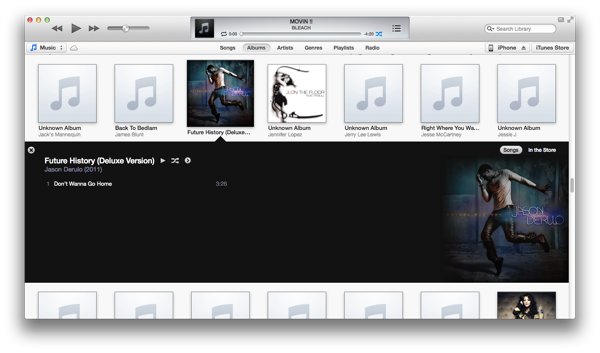


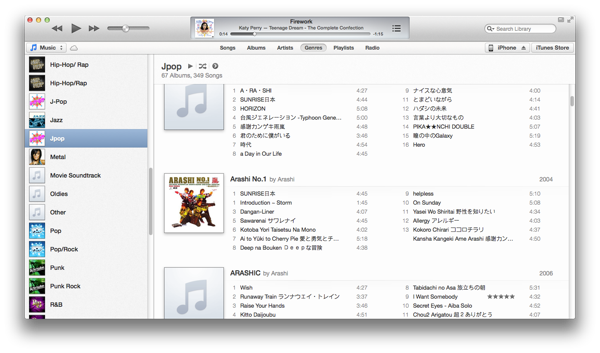


Back to playing songs...


Something that got me really excited in the update is the ability to see what songs are coming up next, and change it...


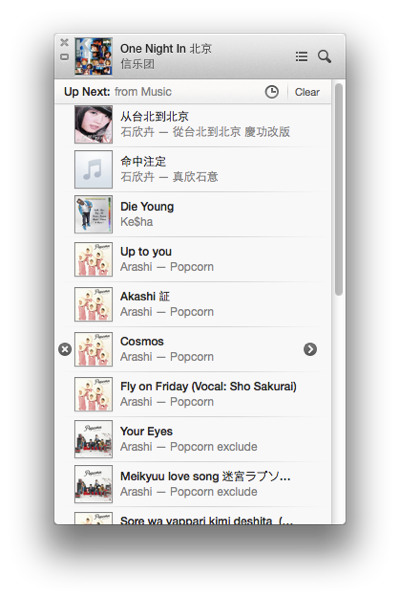

One thing that really please me as well is that the new update didn’t break my application hotkeys in alfred XD
hmm…. that's about all about the new iTunes…
Overall? I think it looks very bright and clean. Very fresh looking. The best change for me would be the ability to see what songs are coming up next, or add songs to play next as i please… yup. It’s a nice update :)
Friday, September 21, 2012
iPhone 5 Map Application Failing Epically - G4tv.com
iPhone 5 Map Application Failing Epically - G4tv.com
LOL! this is really hilarious! maybe this is why google hasn’t rushed to make a map app for the apple store yet? LOL
but yes... apple's maps have A HELL LOT of improvements to be done
LOL! this is really hilarious! maybe this is why google hasn’t rushed to make a map app for the apple store yet? LOL
but yes... apple's maps have A HELL LOT of improvements to be done
iMessages and Apple Maps
Apple finally unified the iMessages experience in iOS 6, by allowing you to receive iMessages sent to your phone number even on your computer or iPad.
However… I'm still less then satisfied with iMessages on the mac… so much so that i won't use it at all… well almost… i might use it if i feel like spamming my friends with iMessages or something as a prank (since most of them don't have macs and will need to spend a considerably longer time typing on the puny iPhone screens). But yeah… i still don't like the new messages app for mac. And iPad.
Why?
I don't on my messages app on the mac all the time… but when i do, i want to see ALL my iMessage on the app. I don't want to see an empty screen with no idea where the last conversation went to. And i can't seem to find a way to force messages to download all my iMessage conversations… Even if you give me an option to load messages between a particular person (say the last 10 or last XX) it'll be great. Now i just open up an empty window with no idea who i last messaged and what we last talked about :X
The weird thing is that i can't seem to receive messages sent to my phone number on the mac even though its supposed to be unified o.o. No idea what I'm doing wrong or anything but…. the thing DID work on the iPad. I can also know iMessage to someone's phone number from the iPad… previously could only iMessage their email.
Another problem is that you can't seem to send out iMessages with your phone number from the iPad and mac… and this sucks cos that means you'll end up having two conversation threads on the other party's phone…. wonder if they'll change this? o.o
Or am i doing anything wrong here? No more updates available in the app store… tried signing in and out of my mac messages as well… wonder what's wrong? maybe i'll try again tmr.
And ah the apple maps… the non satellite version seems good enough… but the satellite maps… were anything but pretty. Far short of the polish expected of apple… somehow i don't recall google satellite images to look so bad… check out these images… loads of joins between the satellite snap shots… and i wasn’t alone in feeling disappointed with apple's maps...
I sure hope the data quality will improve with time...

the very obvious joining of different satellite images… i know you can't take an image of the entire earth at once… but surely there's a better way to join the images…? or like… use images taken at more similar times…? Like… not have a part of the land so bright and the other so dark like this?

Or like this… :X

This is even worst… the picture quality on one side is so much worst. And nope, i waited a long time… it aint like this cos it isn't done loading. Also notice that the wifi loading circle thing at the top bar isn't there? Its done loading and this is how it is :X

on the other side… again, totally different colour and quality.
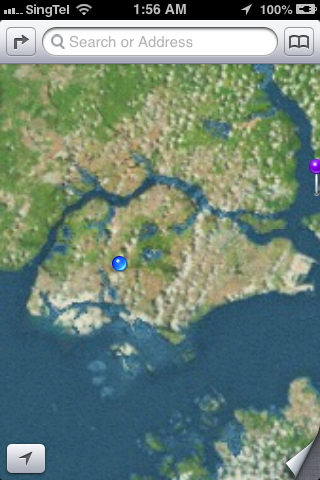
If you zoom out enough, the image looks ok though, no complains here.

Slightly more zoomed in images of SG looks ok… most of the time. Scrolling around i still see some joined parts though...

Now that's a lot of joints on this small screen...

The normal view looks ok though...


Except for the fact that i really want to see the buildings and HDB blocks in the map… and preferably with the blk numbers too. YES! Block numbers! AND BUILDINGS. Am I asking too much? I don't think so… i don't want to carry a huge street directory around… i want to just rely my smartphone...

And lastly the hybrid view...
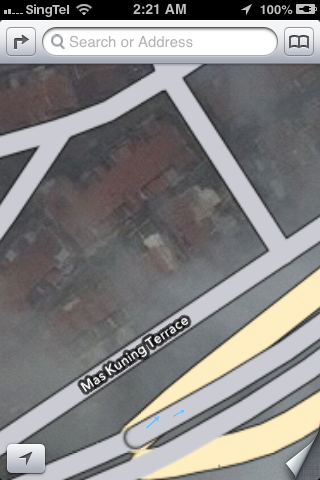
At least you know that all those land around the road have buildings in them with this view… there's also the traffic that you can hide n show… but it aint seem to do anything at all… not sure if its cos the feature aint available for sg? or like the old google maps u have to wait an exceedingly long time? (i did wait long enough IMO)… or is there something that I'm missing? o.o Idk...
Well lastly… music on the iPhone got a makeover as well… new colour scheme of white, black, and ORANGE! No more blue highlights for the replay and shuffle buttons… its now ORANGE lol.

The track selection list is now WHITE

but now playing is black with orange play/shuffle buttons (when selected). The volume and what's that called… chaser? the timing selection thing… now features a pretty looking metal button.
Hmm… that's all the new stuff i discovered for now :P
Thursday, September 20, 2012
iOS 6 and OS X 10.8.2!
Ok, so my computer is done with OS X updates, my 3GS is now running iOS 6… all I'm left with is to wait for iPhoto and Xcode to update finish in the mac app store.
I've barely had time to discover all the new things in the new OSes yet so… i'll just post as i go.
I'll start off with the iOS.
1st up… when i checked out my phone after the OS update, the most glaring and obvious thing was the extra page page 2 the new iOS added for me… What happened? Cos there's a new icon for passbook - which pushed the newsstand app to the 2nd page. 1 thing i hate about the newsstand app is that i can't throw it in some random filer. I don't subscribe to anything so basically my newsstand is empty… but i can't stow it away in a folder either… i ended up having to drag the singtel getamped app to my music folder to make way in my 'random' folder for the passbook icon… i throw stuff like stocks, voice memos, weather, compass etc in there. Passbook looks like a great app, BUT its only great in concept atm. If stores in Singapore starts using it a lot, then it'll be truly great. Otherwise… it'll just end up being another of those 'preloaded apple apps that i don't use but can't delete'. I know starbucks have already pledged support for it, but i don't drink starbucks very often… i'll need more then just starbucks to convince me of its usefulness. Hopefully more merchants in SG will adopt it.
Another thing that's become quite obvious is the colour change in the top bar of the iPhone screen - where they have the battery icon, the time and the carrier icon. In some apps, the bar is changed to a blue hue… and it seems like the colour scheme of many things have been changed. App store is now more blackish, the settings is more blueish… in messages the top bar is now blue, making the whole app feel more… blueish. Feels like the whole colour scheme has changed when in actual fact it should be only that little bar that has changed. EDIT: ok the whole colour scheme of things have changed. It used to be blue but with a yellowish tinge. The old header bar was also white. Now both are blue...
Not sure when, but iTunes store finally works in sg. The last time i tried i only got a miserable message saying that the iTunes store isn't available for your country… iTunes store seems to have changed colour too. i still can't connect to the music store… not sure why, but the movies load up alright.
App store has changed too. The menu bar at the bottom has gotten rearranged, with updates in the middle instead of on the right side and a new genius icon added in (EDIT: not sure why but later on the genius icon was in the middle, and the updates back in its usual position).

The search page has been refined to give more details about the app right away, including a screenshot of each app… you have to swipe left and right to view each app.

It looks better now, but in a way it means you have to spend more time swiping through to look at all the search results. As other's have mentioned with the developers iOS 6 preview, you now don't need to key in the password for updating software (and dl-ing free software) and when updating apps you don't get auto kicked out to the home screen after hitting the update button… i was dumbly waiting for a response (i.e. getting kicked to the home screen) OR a message popping out to say i don't have enough space on my phone to update all the apps just now… only to realise a while later that all my apps where happily getting updated already… *facepalm* yeah i read about this change before… but after several days of hunting for apps to delete due to lack of space to update other apps… i was expecting the 'NOT ENOUGH SPACE' message to come yelling at me :X
I dug through the settings on my phone and noticed quite a few new things. For one there's the 'Do Not Disturb' setting, and a new 'Privacy' menu. In 'Privacy', you can see all the apps that have requested permission to access you twitter, Facebook and sina webo accounts, as well as your photos, reminders, calendars, contacts, bluetooth sharing, and location services….

Notice the blue top bar VS the black previously and in the app store (SS abv)

In general settings… you can force your phone to sync with your computer as long as you're on the same wifi network… honestly i can't rem if this feature was here already, i think it might be an old feature, just didn’t take much notice before…
One thing that i tried out 1st on the iPad was the new maps application. In truth the maps look lot like the old google maps - the location of the buttons and all… just that the new one has prettier looking icons and text. Turn by turn navigation is available in sg! Tried it on the iPad. Not available on iPhone 3gs tho. sighs. Not yet tried the flyover thing on the iPad either… but once again, its not on the 3gs. New clock app on the iPad too, looks good, but its not something I'd be using much even if i were the iPad owner.
In photos, you now have a photo stream menu item, and you can now create new albums in photo stream to share with others. You can even make the album open to public - meaning that the whole world can see your photos from the iCloud website.


Ah yes… the twitter and Facebook integration… now its much easier to post a tweet or a FB status update - you just have to pull down your notifications bar and 'tap to tweet' or 'tap to post'…

with the FB integration, your contacts and calendar gets integrated with FB… bad thing for me who friended like a million ppl on FB though - now my calendar is just flooded with FB bday notifications… good thing you can turn them off though - something which i just did. They let you select whether to turn off just the FB days or the FB events, so that's quite a good thing. Contact integration with FB once again pulls out all the contact of all your FB friends n throws them in your contact list. Like with the contacts from emails and multiple places, you can select which to view and which not to… and i've promptly turned off my FB's list of contacts :X


There's a whole load of other updates… like iCloud tabs in safari… VIP lists in email (which is useless for me ATM)… easier to attach photos and videos to mail - this one is a great improvement, though I'd like to see the ability to attach files (like word docs and stuff) in apps from the mail itself, rather than having to go to the app, selecting the file and then selecting share to email. Even now, we have to go to the photos app then select share… well I'd admit the share menu has gotten much much prettier now, but I'd still like to attach stuff to mails :X Now you can even directly select a photo to use as wallpaper from the photos app. No need to dig around in the settings anymore! EDIT: opps, this feature was already there previously… i just… never bothered to read all that bunch of text options… all i can say is that i previous the bright looking icons now to the old bunch of text options. Its faster to look at icons then to read lines of text IMO.


All that sina weibo integration is tempting me to open a weibo account… a bunch of my friends have been asking me to but so far i've not…. well i don't even update my blog regularly… and you still want me to keep a chinese blog? meh… i think i just might :X EDIT: wow i just tried… i actually did sign up for a weibo acct already… WOW since when lol! ok so now i can sign in to weibo on my phone n comp...
What else is there…. safari offline reading lists… not available in iPhone 3gs. Panorama photos - not on 3gs either, means i'll still have to use 3rd party apps to do it (i hardly take panorama photos anyway)… what else is there? ah… you can now send text message replies instead of picking up phone calls… good, but I'd hardly use it, at least for now anyway. Oh of course siri got better, but i don't have siri. Pinyin keyboard is supposed to be better now, but i've not tried it out yet :P (ok, i tried it out a little… the ability to mix english words in is great, but i wish for things the other way round… the ability to mix chinese words in while typing english… :X)
The thing about many of apple's updates/upgrades is that… things are just there, and they just work. They aren't very attention grabbing… its like after i updated my phone, i don't even realise anything that's changed for a while. And that's not a bad thing. I'd be really pissed if like my apps are all over the place and the whole phone has been turned upside down (or rather, inside out). Hmm… which feature do i like the most…? I think right now it'll be the easy FB status updates and tweeting. I think my dad will like the turn by turn navigation though… but its not on my phone RAWR!
For the OS X, the changes are much more subtle. The way the whole OS looks and feel pretty much remains the same. Like the iOS, the new notifications bar feature a click to tweet and click to post to FB.

To sign in to FB you go to the mail, contacts and calendars and add a FB account… same for weibo, youku and tudou… you sign in from there...
iMessages now finally lets you receive messages sent to your phone number as well… shall try it out later...
bleah. I'm on a mission to clear up some hard disk space right now… i guess i'll post later when i have more discoveries :P
Ok… i tried out in more detail the new apple apps… and i must say the picture quality for the satellite view is not very good… parts of the map are just weird bits and pieces joined together, with clear lines of the joining… can see the iPad planning out the routes and all but not sure exactly how well the turn by turn navigation works since there's no stimulation mode...
Subscribe to:
Posts (Atom)